Linux gaming is no longer a niche experiment. For many players, it has become a practical alternative to Windows - especially if your library leans heavily toward single-player games, indie titles, emulation, or Steam-based releases. The video behind this guide makes a strong case that Linux Mint is one of the easiest entry points for gaming on Linux, and that claim holds up for a lot of users.
What makes Mint appealing is simple: it removes much of the friction that used to scare people away from Linux. You get a familiar desktop, straightforward driver tools, and access to the key launchers and compatibility layers that make modern Linux gaming work.
This article turns that walkthrough into a cleaner, more useful setup guide. Rather than repeating the video step-by-step, it adds context around why each step matters, where new users tend to get stuck, and what tradeoffs to expect - especially if you're using Nvidia, AMD, or Intel graphics.
Key Takeaways
- Update Linux Mint first, including switching to the fastest software mirrors before installing gaming tools.
- Nvidia users should install proprietary drivers through Driver Manager; the open-source Nouveau driver is usually not the best choice for gaming.
- Use the native Steam package, not the Flatpak version, to avoid extra permission hassles and controller issues.
- Enable Proton in Steam so Windows games can run on Linux with minimal setup.
- Heroic is a practical option for Epic Games Store, GOG, and Amazon games on Linux Mint.
- Lutris is useful for edge cases, especially if you want to install Windows games manually or manage multiple launch sources.
- ProtonUp-Qt helps manage alternate Proton builds, which can solve compatibility issues for specific games.
- Most games work well, but anti-cheat remains the biggest blocker for some competitive multiplayer titles.
- AMD and Intel users may benefit from newer kernels, because newer hardware often performs better with more recent Linux support.
- Launching Steam from the terminal can make troubleshooting far easier when the app refuses to start.
sbb-itb-dc5b06c
Why Linux Mint Is a Strong Gaming Choice
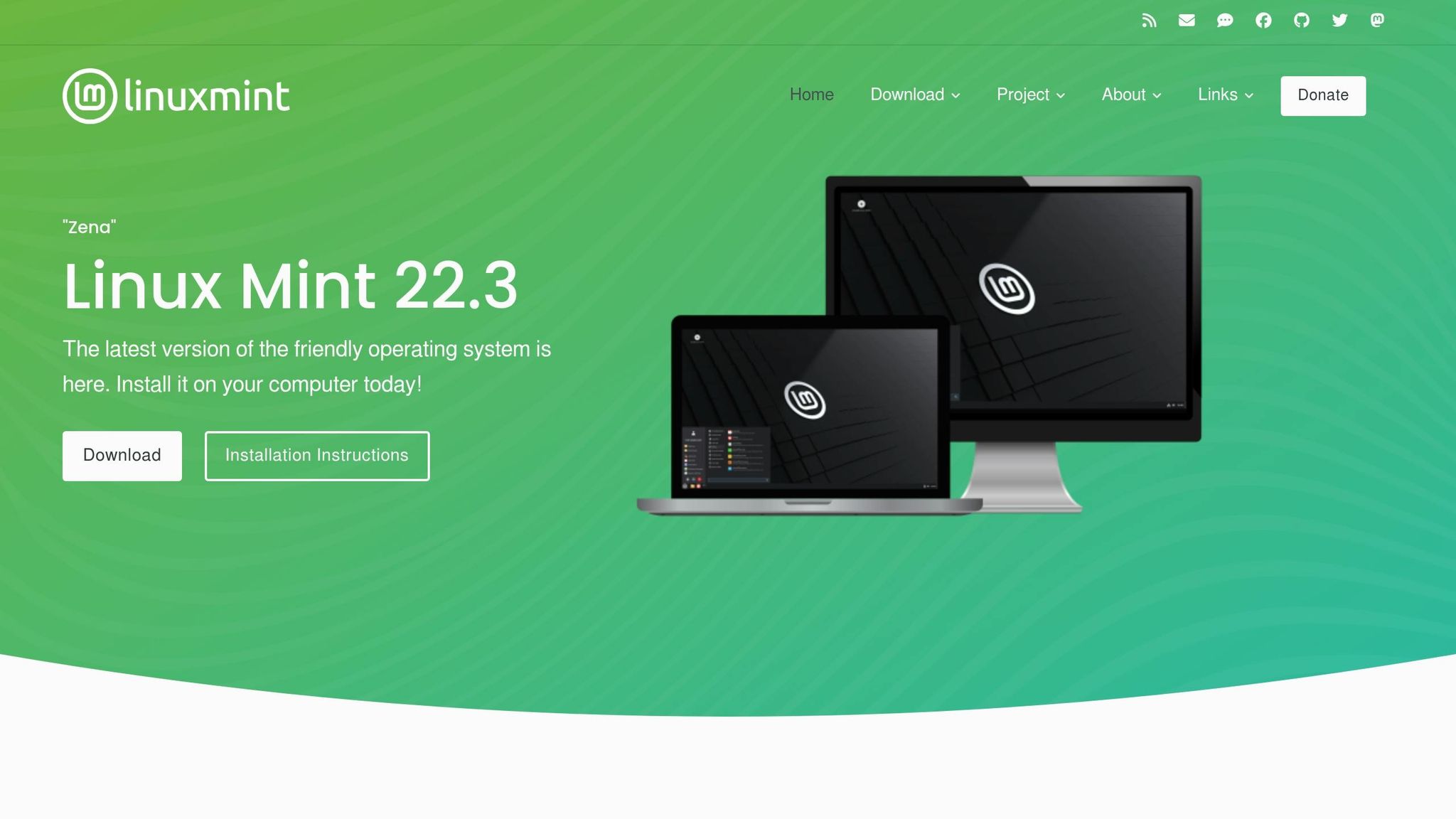
Linux Mint is not usually the first distro people associate with gaming. That title often goes to distributions like Nobara, Bazzite, or Pop!_OS. But Mint has one major advantage: predictability.
It is built for stability and ease of use, which matters if you want a machine that plays games without turning every update into a science project. Mint also includes graphical tools for updates, drivers, and software installation, which lowers the barrier for users coming from Windows.
The video positions Mint as a mostly universal option across Nvidia, AMD, and Intel systems. That is broadly true, but with one caveat: newer AMD and Intel GPUs often benefit from newer kernels and Mesa stacks. The presenter mentions this directly, and it’s one of the most important practical notes in the whole guide.
So while Mint is beginner-friendly, your experience will still depend on your hardware:
- Nvidia: usually needs proprietary drivers for best results
- AMD: often works well out of the box, but newer hardware may want a newer kernel
- Intel: similar story to AMD, especially for recent integrated graphics
Step 1: Update Mint Before You Do Anything Else
Before installing Steam or third-party launchers, start with system updates.
The video recommends opening Update Manager and, before updating, changing the Linux Mint and Ubuntu base mirrors to the fastest ones available in your region. That is smart advice for two reasons:
- Downloads complete faster
- Package installs are less likely to fail or stall
On Linux, gaming problems often begin with incomplete dependencies, outdated repositories, or stale system packages. Updating first reduces the chance that you’ll troubleshoot a problem that was already solved upstream.
What to do
- Open Update Manager
- Go to Software Sources
- Select the fastest mirror for:
- the Linux Mint repository
- the Ubuntu base repository
- Install all available updates
- Reboot if prompted
This is not the most exciting step, but it is one of the most important.
Step 2: Install the Right GPU Driver
This is where Linux gaming success or failure often starts.
Nvidia users: use the proprietary driver
The video is especially clear on this point: if you use Nvidia, switch away from Nouveau and install the proprietary driver through Driver Manager.
That advice matches real-world experience. Nouveau is useful as a fallback open-source driver, but for gaming it typically lags behind Nvidia’s official driver in performance, feature support, and reliability.
Once the proprietary driver is installed and the system restarts, you can verify that it loaded properly by running:
nvidia-smi
If that command works, it should show your GPU model, driver version, and CUDA version.
A note on 32-bit Nvidia libraries
The video also highlights the need to confirm that 32-bit Nvidia graphics libraries are installed. This matters because some games - and some parts of Steam’s compatibility stack - still rely on 32-bit components.
The specific package name depends on the installed driver version. In the video, the example follows the installed Nvidia version number. If the package is already present, the system will tell you.
That step may feel old-fashioned in 2026, but Linux gaming still has some legacy plumbing under the hood.
AMD and Intel users
The video doesn’t walk through a separate AMD or Intel driver install, because in most Linux setups those drivers are built into the kernel and Mesa stack. The important note is that newer hardware may need newer kernel support than a conservative distro default provides.
If you're on newer AMD or Intel graphics and performance seems unexpectedly weak, the issue may not be Mint itself - it may be the software stack version.
Step 3: Install Steam the Right Way
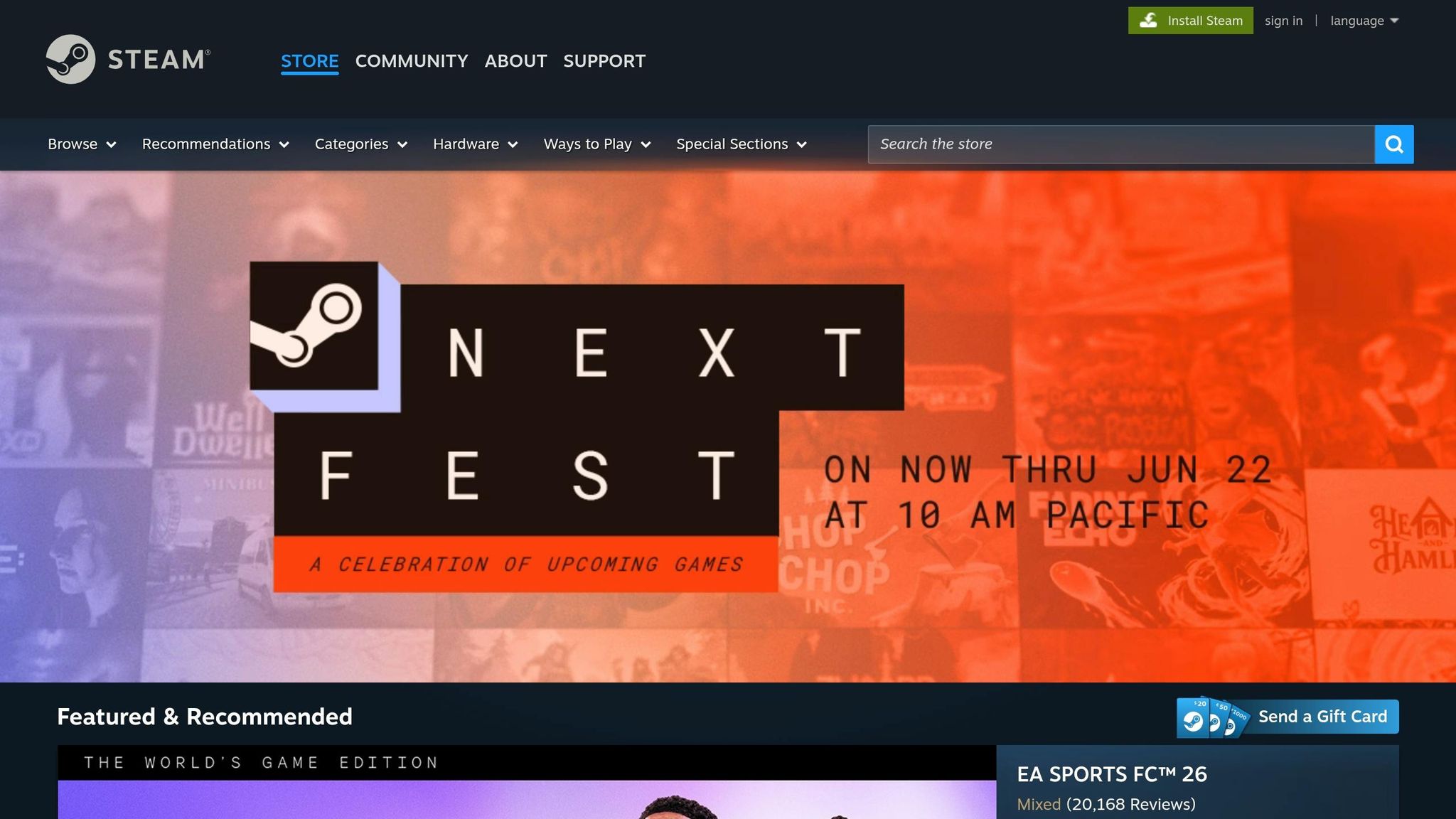
The video makes one recommendation that many Linux users will agree with immediately:
Install the native Steam package, not the Flatpak.
That advice is less about ideology and more about convenience. Flatpaks are useful, but gaming can expose the edge cases:
- controller access may need extra permissions
- filesystem access can be restrictive
- troubleshooting becomes less straightforward
- some tools expect the native Steam layout
For a beginner-friendly gaming setup, the native package is often the least frustrating path.
Why this matters
Steam on Linux is more than a storefront. It is the main delivery mechanism for:
- Proton compatibility tools
- controller handling
- game runtime dependencies
- launch options and debugging
When Steam behaves oddly, using the distro-native package tends to reduce one layer of complexity.
Step 4: If Steam Won’t Launch, Start It from Terminal
This is one of the most practical troubleshooting tips in the video.
If Steam refuses to open from the app menu, launching it from the terminal can reveal the actual error output:
steam
That output gives you something to work with - missing libraries, permission issues, runtime conflicts, or driver-related errors. Without those logs, you're guessing.
For problem solvers, this is the difference between "Steam is broken" and "Steam is missing a dependency."
Step 5: Turn On Proton for Windows Games
For many users, Proton is the real engine behind Linux gaming.
The video explains Proton as the compatibility layer that allows Windows games to run on Linux by translating what the game expects into what Linux can actually provide. It specifically references DirectX being translated into Vulkan-based behavior, which captures the basic idea even if the implementation is more complex under the hood.
In practical terms, Proton is what makes a huge portion of the Windows Steam library playable on Linux.
In Steam, enable compatibility support
Inside Steam settings:
- go to Compatibility
- enable Steam Play / Proton support
- use Proton Experimental as the default starting point
For most users, Proton Experimental is fine. It includes current fixes and broader support for newer titles. But not every game behaves best on the newest build.
When a game doesn’t work
The video gives the right strategy: don’t immediately change Steam-wide settings. If one game fails, change the Proton version only for that game.
To do that:
- open the game’s Properties
- go to Compatibility
- force a specific Proton version
That matters because Linux gaming is often game-specific. One title may work perfectly on the latest Proton release, while another older game may prefer an earlier version.
What Games Actually Work on Linux Mint?
The video is optimistic, but not blindly so. It draws the line where most Linux gamers would draw it: competitive anti-cheat games remain the biggest weakness.
That is still the central reality in 2026.
Usually good candidates
- single-player AAA games
- indie games
- older Windows games
- many co-op and non-competitive titles
- a large portion of the Steam catalog
Common trouble spots
- some Call of Duty releases
- games whose developers disable Linux support despite anti-cheat options existing
- launchers layered inside launchers
- online titles with aggressive kernel-level anti-cheat
The video specifically notes that support for anti-cheat systems like BattlEye and Easy Anti-Cheat exists in many cases, but developer choice still determines whether a game actually runs.
That is an important distinction. The technology may be available, but the publisher still has to allow it.
Controller Support and GPU Modes on Laptops
The presenter briefly shows an Nvidia profile switcher and explains the difference between always-on performance mode and on-demand switching. That is especially relevant for laptop users.
If you use a gaming laptop
You may see options like:
- Performance mode: dedicated Nvidia GPU stays active
- On-demand mode: system uses integrated graphics until a game needs the Nvidia GPU
Performance mode is simpler and often better for gaming sessions. On-demand mode is more battery-friendly when you're not playing.
For desktop users, this usually matters less because the discrete GPU is already your active graphics path.
Controller support
The video uses an 8BitDo controller and shows a seamless experience. That reflects a broader truth: controller support on Linux is much better than it used to be, especially through Steam Input.
This is another reason the native Steam package is recommended. It tends to integrate more cleanly with controllers than a sandboxed app setup.
Step 6: Use Heroic for Epic Games Store, GOG, and Amazon Games
Steam is the core of Linux gaming, but many players also have libraries scattered across other storefronts. That’s where Heroic Games Launcher comes in.
The video presents Heroic as the easiest route for Epic Games Store titles, while also noting support for GOG and Amazon libraries.
Why Heroic matters
Heroic solves a common Linux problem: many launchers are made for Windows first and Linux second, if at all. Heroic provides a Linux-friendly interface for downloading and launching games you already own elsewhere.
In the setup shown in the video, you:
- sign into your account
- fetch your library
- choose a game
- pick an install path
- select a Wine or Proton-based compatibility runner
- install and launch
That simplicity is the real value. It avoids some of the awkwardness of trying to run storefront clients directly through Wine.
Where Heroic fits best
Heroic is ideal if:
- you claim free Epic games regularly
- you have DRM-free GOG purchases
- you want a cleaner Linux-native front end for non-Steam libraries
Step 7: Use Lutris for More Custom Setups
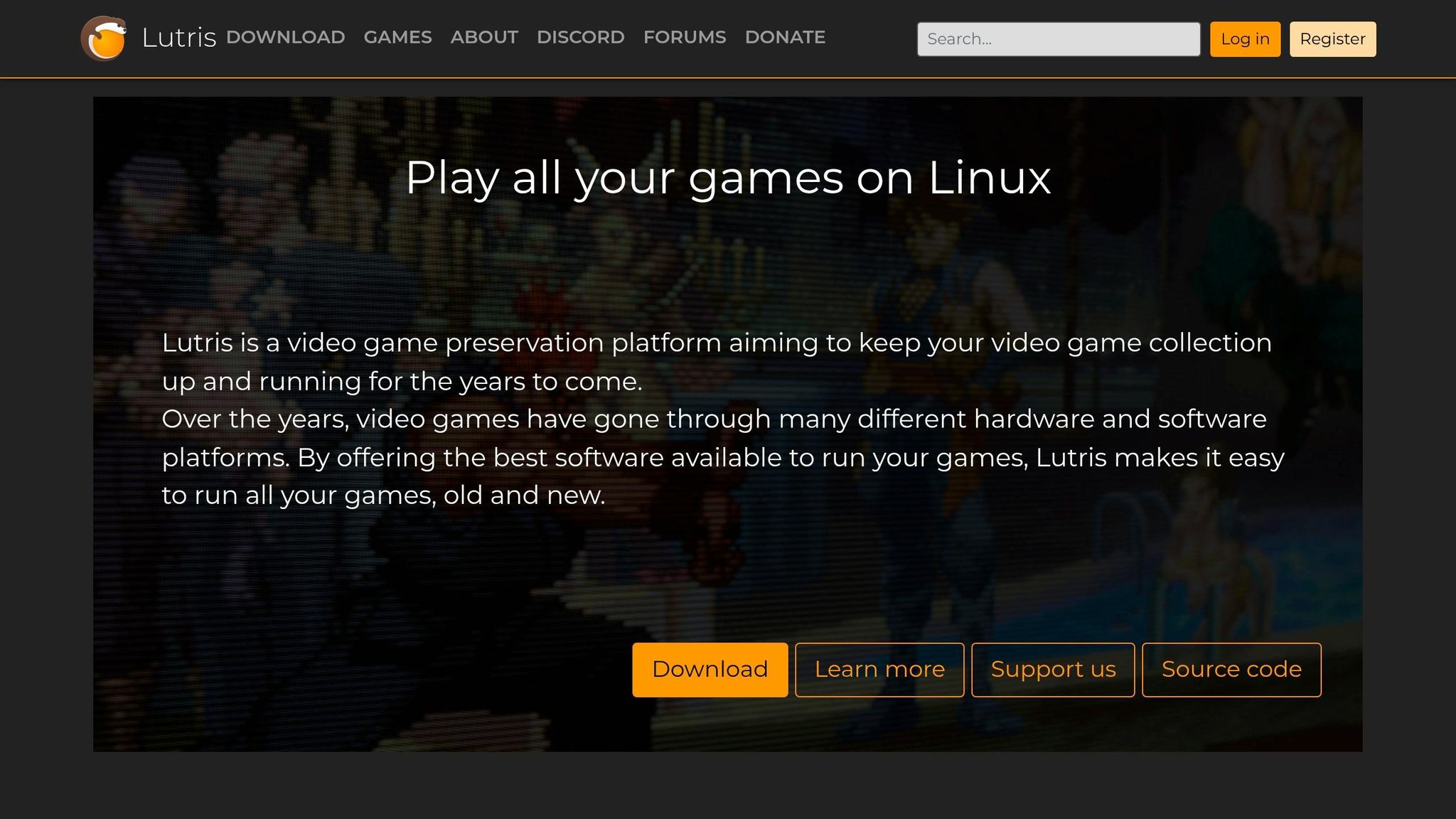
Heroic covers a lot, but Lutris remains the power-user Swiss Army knife.
The video describes Lutris as less central to the creator’s current workflow than it was a few years ago, but still very useful for special cases. That is a fair assessment. Lutris shines when you need more control.
What Lutris does well
- connecting multiple game sources
- installing Windows games from standalone executables
- managing runners
- creating launch shortcuts
- handling custom install scripts
If you have a game installer sitting in a folder rather than tied to a storefront, Lutris can help you turn that into a working Linux game entry.
Why beginners may still want it
Even if you don’t use Lutris every day, it’s handy for those "nothing else worked" situations. Heroic is often easier; Lutris is often more flexible.
That makes Lutris a useful second tool, not necessarily your first.
Step 8: Manage Proton Versions with ProtonUp-Qt
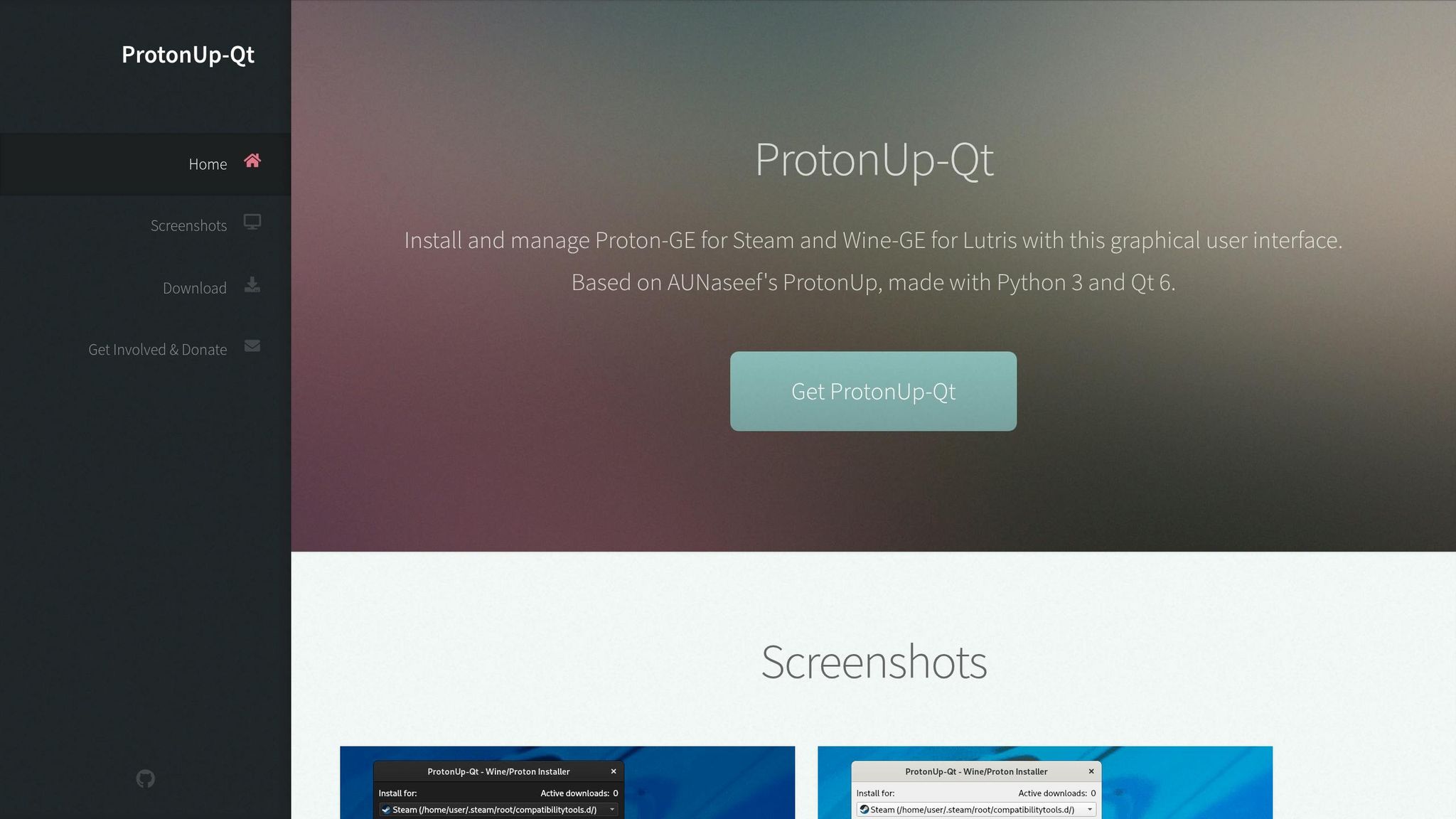
One of the strongest quality-of-life recommendations in the video is ProtonUp-Qt.
Linux gaming sometimes comes down to runner versions. A game may fail on one Proton build and run perfectly on another. ProtonUp-Qt gives you a graphical way to install and manage alternate compatibility tools such as:
- GE-Proton
- standard Proton builds
- other specialized variants mentioned in the video
Why this tool matters
Without ProtonUp-Qt, you may need to manually place compatibility files in the right directories. That’s not difficult for experienced users, but it’s unnecessarily intimidating for everyone else.
With ProtonUp-Qt, you can:
- choose the target app, such as Steam or Heroic
- install another compatibility version
- restart the launcher
- select the new runner in the game’s settings
That makes experimentation much easier when a title refuses to cooperate.
The Bigger Claim: Is Linux Better for Gaming Than Windows?
The video argues that Linux now provides a better experience than Windows for many games because Windows carries more background overhead and bloat. That statement is partly true - but it deserves nuance.
Where Linux can feel better
- fewer background interruptions
- no forced OS-level ad clutter
- strong performance in some Vulkan-friendly games
- lightweight desktop environments
- better control over what runs on your system
Where Windows still has advantages
- maximum compatibility on day one
- broader anti-cheat support
- fewer launcher workarounds
- more universal vendor support
- less friction for niche peripherals
So the most accurate version of the video’s claim is this:
Linux can absolutely be the better gaming platform for your use case - but not for every game and not for every player.
If your habits match Linux’s strengths, Mint can feel refreshingly smooth. If you mainly play competitive multiplayer titles with restrictive anti-cheat, Windows still wins on compatibility.
Best Linux Mint Gaming Setup Checklist
If you want the shortest version of the process, here it is:
- Update Linux Mint fully
- Switch to the fastest package mirrors
- Install the correct GPU driver
- Verify Nvidia setup if applicable
- Confirm required 32-bit components are installed
- Install the native Steam package
- Launch Steam and enable Proton
- Test a known-working game first
- Install Heroic for Epic/GOG/Amazon libraries
- Keep Lutris available for custom installs
- Use ProtonUp-Qt if a game needs a different compatibility tool
That workflow gives most users a strong starting point without overcomplicating the setup.
Final Thoughts
The biggest message from the video is not just that Linux Mint can run games - it’s that Linux gaming has matured enough to feel normal. That may be the most important shift.
A few years ago, Linux gaming often required constant tweaking, forum diving, and trial-and-error. In 2026, a distro like Mint can get many people from fresh install to actual gameplay with a surprisingly short list of steps.
The real keys are straightforward:
- keep the system updated
- install the right graphics driver
- use native Steam
- rely on Proton
- add Heroic and Lutris when your library demands it
- treat compatibility as game-specific, not one-size-fits-all
For tech enthusiasts and early adopters, Linux Mint offers a solid mix of simplicity and control. For everyday users, it is one of the more approachable ways to test whether Linux can replace Windows for gaming. And for problem solvers, the ecosystem now has enough tooling to make troubleshooting far less painful than it used to be.
The only major warning remains the same: check your favorite multiplayer games before you switch. If they depend on unsupported anti-cheat, no amount of polish elsewhere will make that tradeoff worth it.
But if your library mostly lives in Steam, includes offline or single-player games, and you want a cleaner desktop experience, Linux Mint is no longer the risky choice. For many gamers, it’s becoming the sensible one.
Source: "The Easiest Linux Mint Gaming Setup Guide (2026)" - G Multiverse, YouTube, Jan 1, 1970 - https://www.youtube.com/watch?v=GyjeZiCsNJI