When your PC starts, unnecessary startup programs can slow it down by consuming resources like CPU, RAM, and disk space. Disabling these programs improves boot times and overall performance while keeping your system functional. Here's how to manage them:
- Identify Startup Programs: Use Task Manager (Ctrl + Shift + Esc) to view and evaluate apps under the Startup tab. Focus on programs with a High Startup Impact.
- Disable Unnecessary Apps: Right-click an app in Task Manager and select Disable. Avoid disabling critical programs like antivirus software or drivers.
- Alternative Methods: Use Windows Settings > Apps > Startup, delete shortcuts from the Startup folder, or use advanced tools like Autoruns for deeper control.
Regularly check your startup programs to keep your PC running smoothly. Restart your computer to see the changes take effect.
How to Disable Startup Apps in Windows (and What to Disable?)
sbb-itb-dc5b06c
Evaluating Your Current Startup Programs
Before you start disabling programs, take a moment to review your current startup entries. Over time, the average Windows PC can accumulate more than 20 startup programs - many of which aren't essential.
Accessing Startup Apps in Task Manager
The quickest way to check your startup programs is through Task Manager. Simply press Ctrl + Shift + Esc to open it. If you're using Windows 10, click More details at the bottom, then navigate to the Startup tab. On Windows 11, click the Startup apps icon in the left sidebar (it resembles a speedometer). Here, you'll find a list of all scheduled startup programs, along with their current status and impact ratings.
Understanding Startup Impact Levels
The Startup impact column provides insight into how each program affects your boot time. Windows assigns an impact rating based on the CPU time and disk usage a program requires during startup. Here's a breakdown of the impact levels:
| Impact Level | CPU Usage | Disk I/O |
|---|---|---|
| Low | Less than 300 ms | Less than 292 KB |
| Medium | 300 ms – 1 second | 292 KB – 3 MB |
| High | More than 1 second | More than 3 MB |
| Not Measured | Data unavailable | Data unavailable |
Programs with a High impact rating should be your primary focus, as disabling unnecessary high-impact apps can shave 30 to 60 seconds off your boot time. If you see a program marked as Not Measured, it means Windows hasn't collected enough data yet - restarting your PC a few times should generate the rating. For even more detail, right-click any column header in the Startup tab to add CPU and Disk I/O columns.
Use these ratings to decide which programs to keep and which to disable.
Selecting Programs to Disable
Focus on disabling applications that you don't use immediately after logging in. For example, programs like Spotify, Discord, Steam, Epic Games Launcher, and Adobe updaters can be launched manually when needed. However, avoid turning off critical services like antivirus software (e.g., Windows Security or third-party antivirus tools) or hardware-related drivers (like Realtek Audio or Synaptics Touchpad utilities), as this could impact your system's functionality.
If you're unsure about a program, right-click it and choose Search online to find more information. Additionally, keep in mind that some programs - such as OneDrive and Spotify - may re-enable themselves after updates. To prevent this, disable the "Start with Windows" option in their settings.
Once you have a clear understanding of your startup entries, you're ready to start disabling unnecessary programs through Task Manager.
How to Disable Startup Programs Using Task Manager
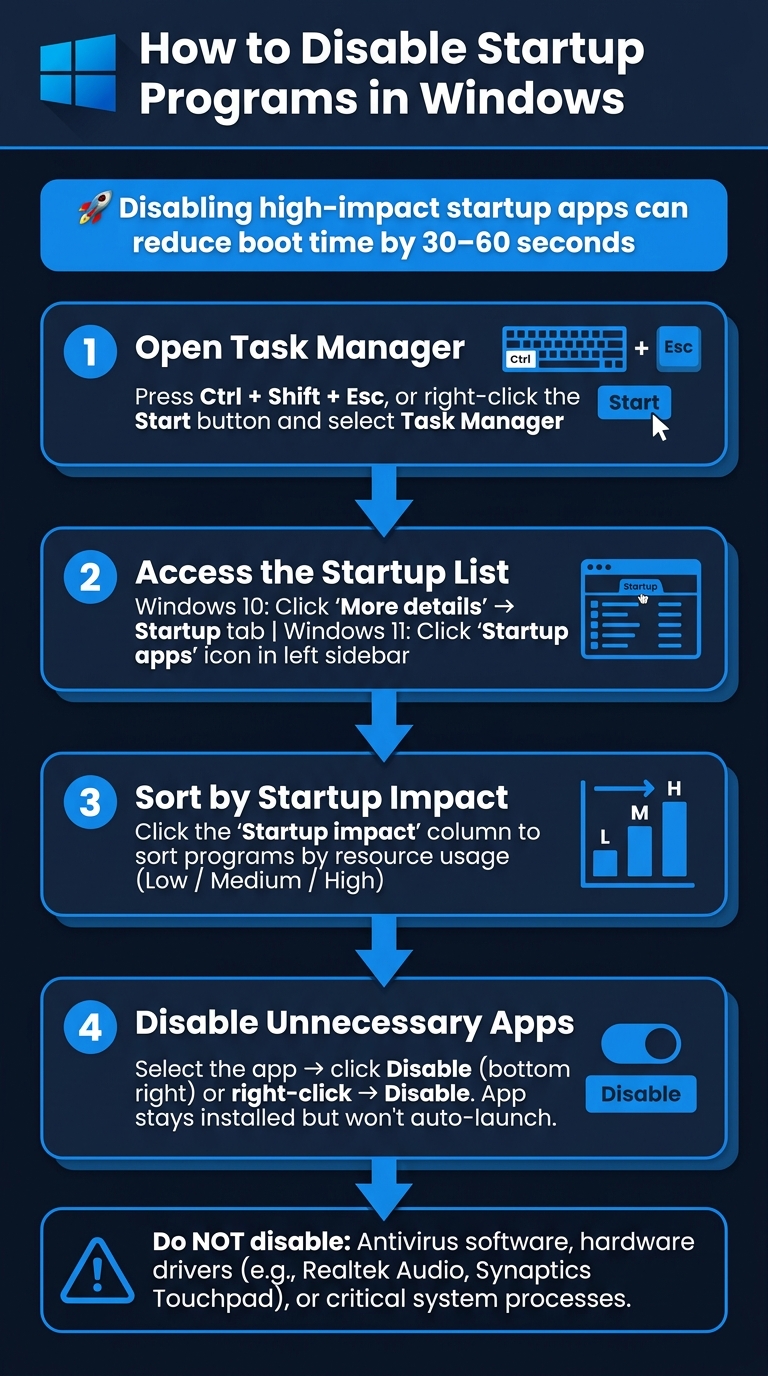
How to Disable Startup Programs in Windows: Step-by-Step Guide
Task Manager is one of the quickest tools for managing startup programs on Windows. It not only lets you disable unnecessary apps but also provides technical details like CPU usage and disk activity. These insights can help you pinpoint what's slowing down your computer's startup process. Here's how you can disable startup programs step by step.
Step-by-Step Instructions for Windows 10 and 11
Once you've identified which programs you want to disable, follow these steps:
-
Open Task Manager
Use the shortcut Ctrl + Shift + Esc to open Task Manager instantly. Alternatively, right-click the Start button and select Task Manager from the menu. -
Access the Startup List
- On Windows 10: If Task Manager opens in compact mode, click More details at the bottom, then navigate to the Startup tab.
- On Windows 11: Select the Startup apps icon from the left sidebar.
-
Sort Programs by Impact
Click the Startup impact column header to sort programs based on their resource usage. This makes it easier to address the most resource-heavy apps first. -
Disable Unnecessary Apps
Select the app you want to disable, then click the Disable button in the bottom right corner. Alternatively, you can right-click the app and choose Disable from the menu. If you're unsure about an app, look it up online to avoid disabling something important.
What Happens After Disabling an App?
Disabling a startup program stops it from running automatically when your computer boots up, freeing up system resources. However, the app remains installed and can still be opened manually when needed. To see the changes in action, restart your computer or simply sign out and log back in.
If you ever need to re-enable a program, just head back to the Startup tab in Task Manager, right-click the app, and select Enable.
Other Ways to Disable Startup Programs
Windows provides several options to manage startup programs, ranging from simple settings to more advanced tools. Let's dive into the alternatives beyond Task Manager.
Using Windows Settings
Windows Settings offers a straightforward way to manage startup programs. Head to Settings > Apps > Startup, where you'll find a list of apps with toggle switches. To disable a program from launching at startup, simply flip the switch to Off. This feature is available on both Windows 10 and 11.
However, note that not all apps will show up here. Some programs might use the Startup folder or their own settings to launch automatically.
Managing Startup Folders
Windows organizes startup programs through two Startup folders: one for the current user and another for all users. Here's how to access them:
- Press Win + R, type
shell:startupfor your personal folder, orshell:common startupfor the all-users folder, then press Enter.
To stop a program from starting automatically, delete its shortcut from the folder. This doesn't uninstall the program; it only removes its ability to launch at startup. This method is particularly useful for apps that don't appear in Task Manager or Windows Settings.
Exploring Advanced Tools
For those who want a deeper look into startup processes, Autoruns is an excellent tool. It reveals everything that runs during startup, including scheduled tasks, drivers, and Explorer add-ons - details that Task Manager may not show.
But proceed with caution: disabling the wrong entry, such as an antivirus component or a critical driver, can cause serious problems. Always create a system restore point and back up registry keys before making any changes. Autoruns is best suited for users with some technical experience who need complete control over startup behavior.
Conclusion: Keep Your PC Fast and Running Well
Key Takeaways
Managing your startup programs is one of the simplest ways to improve your PC's performance. IT Consultant Matt Jacobs highlights this perfectly:
"Managing your startup programs is one of the easiest ways to give your computer a noticeable performance boost."
Preinstalled startup programs can increase boot times by up to two minutes. By limiting startup apps to only the essentials, you can see a noticeable improvement in how quickly your computer starts up. This small tweak works well alongside other optimization strategies we've covered.
Start by disabling non-essential apps, focusing on those that consume the most resources. This approach is the most effective for reclaiming system performance. However, always leave critical programs like security software, hardware drivers, and system processes intact.
Next Steps for a Faster PC
Startup management isn’t a one-and-done task. New software often sneaks into your startup list, so it’s a good idea to check it regularly. Many applications, such as Spotify or Microsoft Teams, include a "Launch at startup" option in their settings, which can override Task Manager preferences - so pay attention to these as well.
If your PC still feels sluggish after trimming your startup apps, it might be time to run a malware scan or perform a hardware diagnostic. For more detailed advice on optimizing your system and managing startup programs, check out Supportia.
FAQs
How do I know which startup apps are safe to disable?
To determine if a startup app is safe to disable, prioritize keeping essential programs active. These include antivirus software, Windows Security, system services, and hardware drivers - all crucial for your system's stability and security. For non-essential apps, like game launchers or messaging tools, you can safely disable them if they're not required immediately after login.
If you're uncertain about a specific app, a quick way to verify its purpose is to right-click the app in Task Manager and check its properties. Alternatively, you can search the app's filename online to gather more information about its function and importance.
Why do some apps re-enable themselves at startup after updates?
Apps can sometimes re-enable themselves at startup after updates because of features like auto-updates or self-repair mechanisms that reset their startup preferences. Some apps even rewrite configuration keys or rely on hidden tasks and services to bypass standard controls. To prevent this, start by looking into the app's settings and turning off any "Launch at startup" options, as these settings often take priority over system-level configurations.
What should I do if my PC is still slow after disabling startup programs?
If your PC is still running slowly, here are some steps you can take to improve its performance:
- Check for background tasks in Task Scheduler: Look for unnecessary tasks running in the background and disable them if they aren’t needed.
- Set non-critical Windows services to Automatic (Delayed Start): This can help reduce the load during startup.
- Uninstall unused software: Remove programs you no longer use to free up system resources.
- Update Windows: Keeping your operating system up to date ensures you have the latest performance improvements and fixes.
Other tweaks include adjusting your Power Mode to Best Performance, disabling transparency effects, or limiting background app permissions. If your memory usage consistently exceeds 80%, upgrading your RAM might be a good idea to improve overall performance.