
When your PC slows down, it doesn’t mean you need an upgrade. Free tools can quickly solve common issues like slow startups, cluttered storage, and unnecessary background processes. Here’s a quick list of the best free apps and built-in tools to speed up your PC:
- Windows Update: Keeps your system stable and secure with the latest patches.
- Microsoft Defender: Protects against malware that can hog resources.
- Task Manager (Startup Apps): Disables unnecessary programs at startup for faster boot times.
- Storage Sense: Automatically clears temporary files and manages disk space.
- Disk Cleanup: Manually removes junk files and reclaims storage.
- Microsoft Edge Extensions Manager: Optimizes browser performance by managing extensions.
- Power Plan Settings: Adjusts power usage for better performance.
- Performance Options: Disables visual effects to improve responsiveness.
- Revo Uninstaller: Cleans leftover files after uninstalling programs.
- CrystalDiskMark: Tests your storage drive’s speed to identify bottlenecks.
These tools are easy to use, free, and effective at addressing performance issues. Start by managing startup apps and running Disk Cleanup for immediate results. For ongoing maintenance, schedule Storage Sense and use Revo Uninstaller to keep your PC running smoothly.
How to Make Your Windows PC Faster for FREE! (2026)
1. Windows Update
Cost: Free | Built into Windows: Yes
Keeping your PC updated is one of the simplest ways to maintain its speed and performance. Microsoft frequently releases patches that address bugs, improve compatibility, and close security vulnerabilities.
If updates are pending, they might be slowing down your system. As Mark Hachman, Senior Editor at PCWorld, explains:
“PCs can also behave badly when an update is needed or downloaded but not yet installed.”
To check for updates, open Settings > Windows Update, click “Check for updates,” and restart your computer once installation is complete. This ensures your system is running smoothly. In Advanced options, enable “Receive updates for other Microsoft products” to include updates for connected hardware like printers and chipsets. You can also explore Optional updates in the same menu to find hardware-specific fixes that aren’t applied automatically.
Keep in mind that free updates for Windows 10 ended on October 14, 2025. To continue receiving performance and security updates, consider upgrading to Windows 11. Up next, we’ll look at how Microsoft Defender can further boost your PC’s efficiency.
2. Microsoft Defender
Cost: Free | Built into Windows: Yes
Malware doesn’t just put your data at risk – it can also slow down your computer. As Microsoft Support points out:
“Malware can consume CPU and disk resources, which can reduce system performance. Running a malware scan can help detect and remove threats.”
Microsoft Defender comes pre-installed on Windows 10 and Windows 11, so there’s no need for extra downloads, setup, or subscriptions. It runs in the background, offering real-time protection that monitors and typically removes threats automatically.
If your computer feels sluggish and you suspect malware, try running a manual scan. Here’s how to do a Quick scan:
- On Windows 11: Go to Start > Settings > Privacy & security > Windows Security > Virus & threat protection.
- On Windows 10: Navigate to Start > Settings > Update & security > Windows Security > Virus & threat protection.
After removing any threats, you might need to restart your system.
One important tip: avoid using a third-party antivirus program alongside Microsoft Defender. Running two real-time protection tools at once can lead to performance issues and even system errors.
For an even smoother experience, consider managing your startup apps through Task Manager to speed up boot times.
3. Task Manager Startup Apps
Cost: Free | Built into Windows: Yes
When you turn on your PC, several apps automatically launch at startup. These programs compete for system resources, which is why your desktop might feel slow for a few minutes after logging in. Disabling non-essential apps is a quick way to speed up boot times and reclaim resources.
To begin, press Ctrl + Shift + Esc to open Task Manager. If needed, click “More details”, then navigate to the Startup tab (Windows 10) or Startup apps (Windows 11). You’ll see a list of programs along with a “Startup impact” column.
“Any programs classified as ‘High’ or ‘Medium’ should be candidates for disabling. The exception would be any mission-critical programs, such as a soundcard’s desktop program, a password manager, or something related to the graphics card.” – PCWorld
Focus on apps with a High impact rating. Common examples include chat apps, VPNs, and cloud storage tools – programs you can open manually when needed. To disable one, right-click it and choose “Disable”. The change will take effect the next time you restart your computer.
Keep in mind: Disabling a startup app doesn’t uninstall it. The program remains installed and functional, and you can always re-enable it by right-clicking and selecting “Enable.”
Once you’ve streamlined your startup apps, you can move on to clearing disk space using built-in cleanup tools.
4. Storage Sense
Cost: Free | Built into Windows: Yes
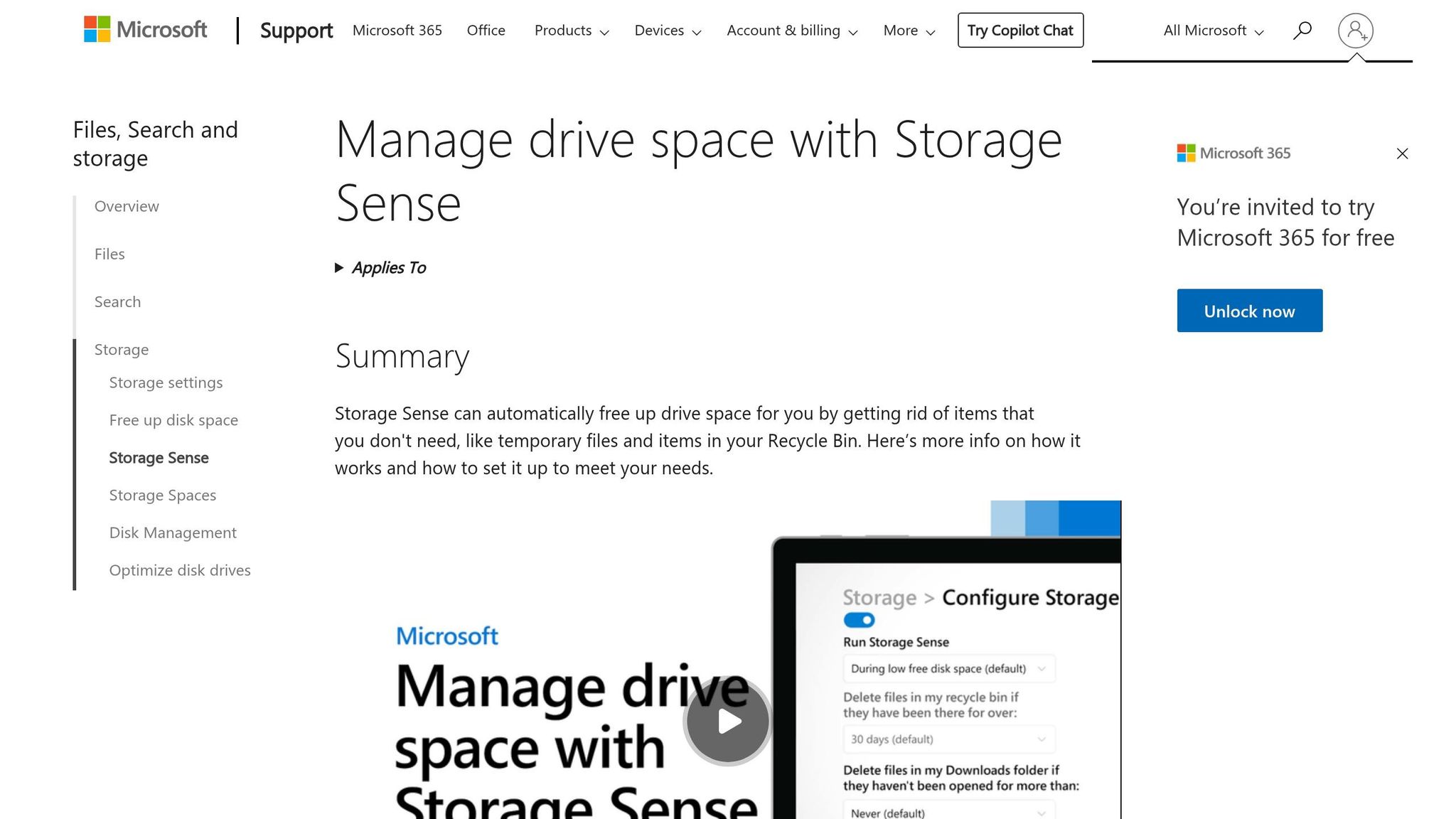
Storage Sense is a handy Windows tool that takes care of disk cleanup automatically. It clears out temporary files, empties the Recycle Bin on a schedule, and converts unused OneDrive files into online-only placeholders.
“Storage Sense is a Windows feature that helps automatically free up disk space by deleting unnecessary files – like temporary files, items in the recycle bin, and offline content from OneDrive.” – Microsoft Learn
By default, Storage Sense kicks in when your disk space is running low. You’ll know it’s happening when the storage bar in Settings turns red. However, if your PC tends to get cluttered quickly, consider adjusting the tool to run daily or weekly instead of waiting for space issues to arise.
To get started, go to Start > Settings > System > Storage. From there, you can set how often Storage Sense runs and tweak thresholds for cleanup. You can also customize its behavior for specific folders, like deciding whether to keep files in your Downloads folder untouched.
If your computer is already feeling bogged down, scroll to the bottom of the Storage Sense settings and click “Run Storage Sense now”. This triggers an immediate cleanup without waiting for the next scheduled run. Keep in mind that Storage Sense primarily works on your C: drive, so you’ll need to manage other drives separately.
5. Disk Cleanup
Cost: Free | Built into Windows: Yes
Disk Cleanup is a built-in Windows tool designed to help you clear out unnecessary files and system clutter. While Storage Sense automates this process in the background, Disk Cleanup offers a more hands-on approach, letting you decide exactly what to remove. It’s a great companion to automated tools like Storage Sense.
“Freeing up space can help your device run better and stay secure.” – Microsoft Support
This tool can improve your system’s performance by getting rid of temporary files, old system updates, and other unneeded data.
To use it, simply search for “Disk Cleanup” in the Start menu, select your C: drive, and then click “Clean up system files” for a deeper scan. This is especially useful after a major Windows update, as it can reclaim over 10GB of storage with just a few clicks.
However, be cautious with your selections. For example, choosing “Previous Windows installation(s)” will delete the Windows.old folder, making it impossible to roll back to an earlier version of Windows. Similarly, checking “Recycle Bin” will permanently delete its contents, so double-check your choices before proceeding.
“The classic ‘Disk Cleanup’ tool built into Windows is still the quickest way to free up space.” – Chris Hoffman, Tech Journalist, Computerworld
Running Disk Cleanup after major Windows updates is an easy way to free up space and keep your system running smoothly.
Next, let’s look at how the Microsoft Edge Extensions Manager can further enhance your system’s performance.
6. Microsoft Edge Extensions Manager
Cost: Free | Built into Windows: Yes
Optimizing your browser can play a big role in improving your PC’s overall performance. While browser extensions can make your browsing experience more convenient, they also use system resources, which might slow things down. Drew Johnson and Lisa Klink from Microsoft explain:
“If you notice some delay in loading pages, this might be due to extensions which run extra lines of web code to personalize the page for you.”
Microsoft Edge comes with a built-in Extensions Manager that helps you pinpoint and remove extensions that could be dragging down performance. To access it, click the puzzle icon near the address bar and select Manage extensions. From there, you can disable extensions one by one to see how they affect performance or remove them altogether. Extensions like shopping tools, third-party toolbars, and VPNs are often the first ones to check.
Edge also includes a performance detector to help identify extensions that consistently slow things down. To enable this feature, type edge://flags/#edge-performance-extension-detection into the address bar, switch it to Enabled, and restart the browser.
“Microsoft Edge can now detect when these delays become noticeable and persistent. We want to help you make decisions about the extensions you use if performance issues stemming from extensions start slowing you down.” – Microsoft Edge Blog
Another useful tip: go to Settings > System and performance and turn off “Continue running background extensions and apps when Microsoft Edge is closed.” This stops extensions from running in the background, freeing up RAM after you close the browser.
7. Power Plan Settings
Cost: Free | Built into Windows: Yes
Your PC’s power settings might not be the first thing you think about when optimizing performance, but they can make a noticeable difference. Switching to the “Best performance” mode in Windows can improve your computer’s responsiveness significantly. Windows offers built-in power modes, allowing you to choose between conserving battery life or maximizing speed.
When you select “Best performance”, Windows disables Power Throttling – a feature that limits CPU frequency for background tasks to save energy. While Power Throttling can reduce CPU power usage by up to 11%, turning it off ensures your processor operates at its full potential.
Enabling “Best performance” mode typically results in a 6–7% performance boost. Here’s how to adjust these settings in Windows:
- Windows 11: Go to Settings > System > Power & battery, then choose “Best performance” from the Power mode dropdown.
- Windows 10: Search for “Power Options” in the taskbar, select the High performance plan, or click the battery icon and slide the power mode to the far right.
Keep in mind, though, that “Best performance” mode uses more energy, which can drain your laptop battery faster. For everyday tasks, Balanced mode is a better choice. Save “Best performance” for demanding tasks and use it while your device is plugged in. If the option is unavailable or grayed out, navigate to Control Panel > System and Security > Power Options to check your settings.
8. Performance Options
Cost: Free | Built into Windows: Yes
Windows uses visual effects like animations, shadows, fading menus, and transparency to enhance its interface. While these features look great, they can take a toll on your CPU and RAM, especially on older PCs or systems with integrated graphics. Disabling these effects is a quick way to make your computer run faster. Here’s how you can do it.
Start by typing sysdm.cpl into the Windows search bar and pressing Enter. Navigate to the Advanced tab, then click Settings under the Performance section. In the Visual Effects tab, select “Adjust for best performance” to turn off all animations. Afterward, re-enable “Smooth edges of screen fonts” and “Show thumbnails instead of icons” to maintain readability and usability.
You should also turn off transparency effects. Go to Settings > Personalization > Colors and toggle Transparency effects to Off. As Preston Gralla, Contributing Editor at Computerworld, explains:
“Windows does a surprising amount of heavy lifting to create transparency effects, and turning them off can make a difference in system performance.”
Transparency effects, in particular, have a “Medium-High” impact on system performance, making them a priority to disable. Here’s a quick breakdown of which effects to address:
| Effect | Performance Impact | Recommendation |
|---|---|---|
| Transparency effects | Medium-High | Disable |
| Show shadows under windows | Medium | Disable |
| Animate windows when minimizing | Low | Disable |
| Fade or slide menus into view | Low | Disable |
| Smooth edges of screen fonts | Low | Keep Enabled |
| Show thumbnails instead of icons | Medium (RAM) | Keep Enabled |
These changes are especially useful for older hardware, but even newer systems with integrated graphics may see benefits. High-resolution displays and complex UI animations can strain weaker GPUs more than you might expect. Pairing these tweaks with other free optimization tools can further enhance your PC’s performance.
9. Revo Uninstaller
Cost: Free (core features) | Pro version: $23.16/year
When you uninstall a program using Windows’ built-in uninstaller, it often leaves behind temporary files, empty folders, and orphaned registry keys. These leftovers can pile up, cluttering your system and slowing it down over time.
Revo Uninstaller tackles this problem by running an additional scan after the default uninstaller finishes. It checks the hard drive and Registry in over 15 categories to catch anything the standard uninstaller misses. You can choose between Safe Mode for quicker cleanups or Advanced Mode for a more thorough search. If you’re dealing with stubborn or corrupted software, the Forced Uninstall feature can handle it. For a hands-on approach, Hunter Mode lets you drag its crosshair icon onto an app or shortcut to instantly access uninstall options.
The free version also packs extra tools like a Junk Files Cleaner, a Browser Cleaner, and a Startup Manager, making it more than just an uninstaller.
One key detail to keep in mind: after Revo scans for leftover files and registry entries, you need to manually click “Delete” to remove them. If you only click “Next” or “Finish”, those items will remain on your system. To ensure safety, Revo automatically creates a Registry backup before deleting anything. This level of cleanup works well alongside other optimization tools to keep your PC running smoothly.
10. CrystalDiskMark
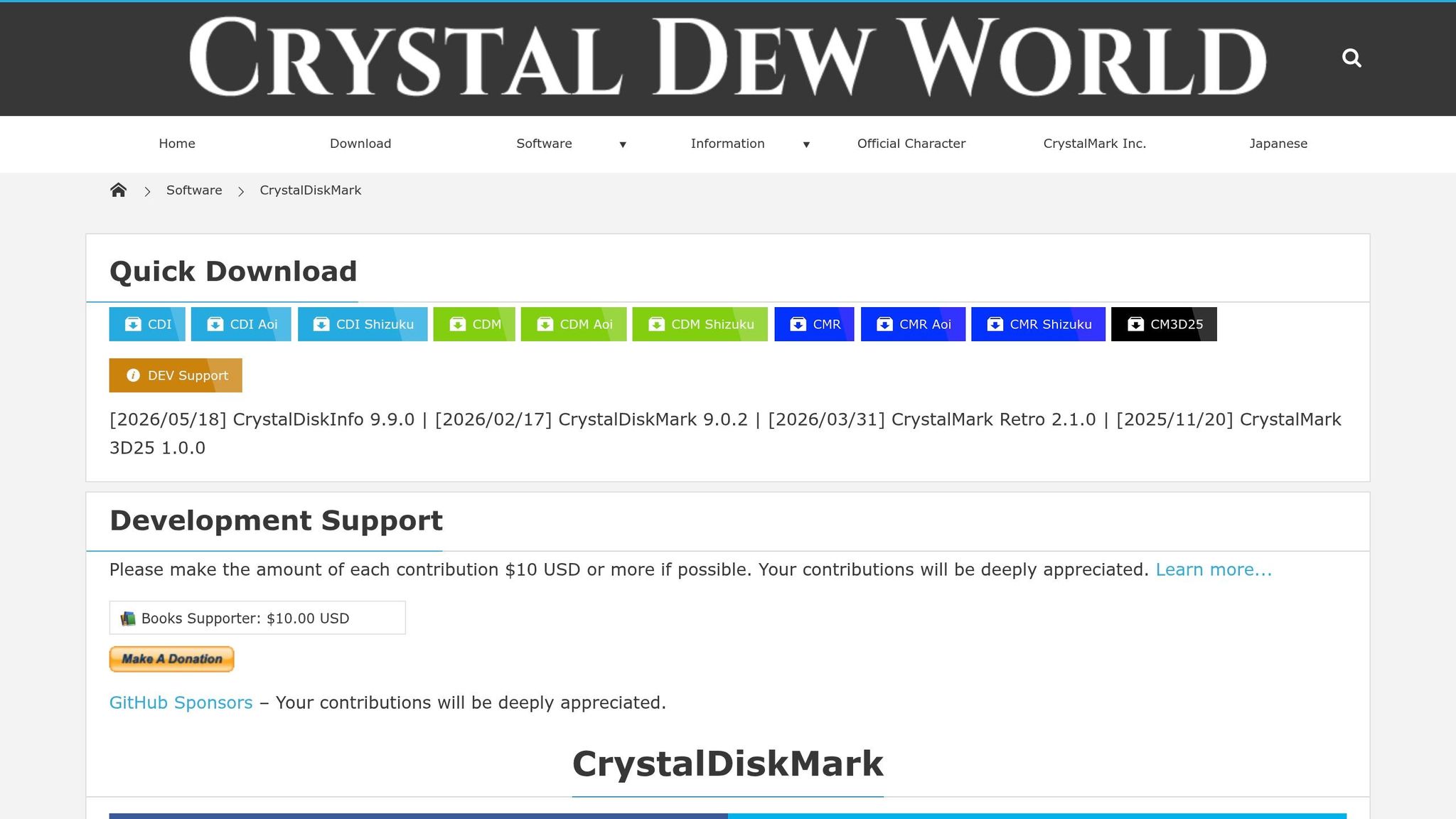
Cost: Free (open-source, MIT license) | Optional donation: $10 or more
If your computer feels sluggish, don’t immediately blame the CPU or RAM – your storage drive might be the culprit. A degraded or slow SSD can drag down your system’s performance. CrystalDiskMark is a handy tool for measuring your drive’s speed through sequential and random read/write tests, with results displayed in MB/s.
- Sequential tests focus on large file transfers, like moving videos or backups.
- Random 4K tests assess how well your drive handles smaller, scattered file operations – essential for tasks like booting up, launching apps, or multitasking.
Even a drive with impressive sequential speeds can struggle with everyday tasks if its random performance is weak.
CrystalDiskMark offers two profiles: “Peak Performance” for maximum speed and “Real World Performance” for typical workloads. For diagnosing a slow PC, the Real World profile is usually more relevant. The current version, 9.0.2 (released February 17, 2026), supports Windows XP through Windows 11, making it versatile for various setups.
In December 2018, PCWorld used CrystalDiskMark to evaluate the Adata XPG SX8200 Pro NVMe SSD. The benchmarks highlighted the drive’s “top-tier performance”, showcasing its speed advantage over standard SATA SSDs.
If your benchmarks show unusually low speeds, running the tests multiple times might reveal thermal throttling – when your drive overheats and slows down. To investigate further, pair CrystalDiskMark with CrystalDiskInfo to check your drive’s S.M.A.R.T. health data. If you notice slow speeds alongside warnings in CrystalDiskInfo, it could indicate a failing drive rather than just underperformance.
Comparison Table
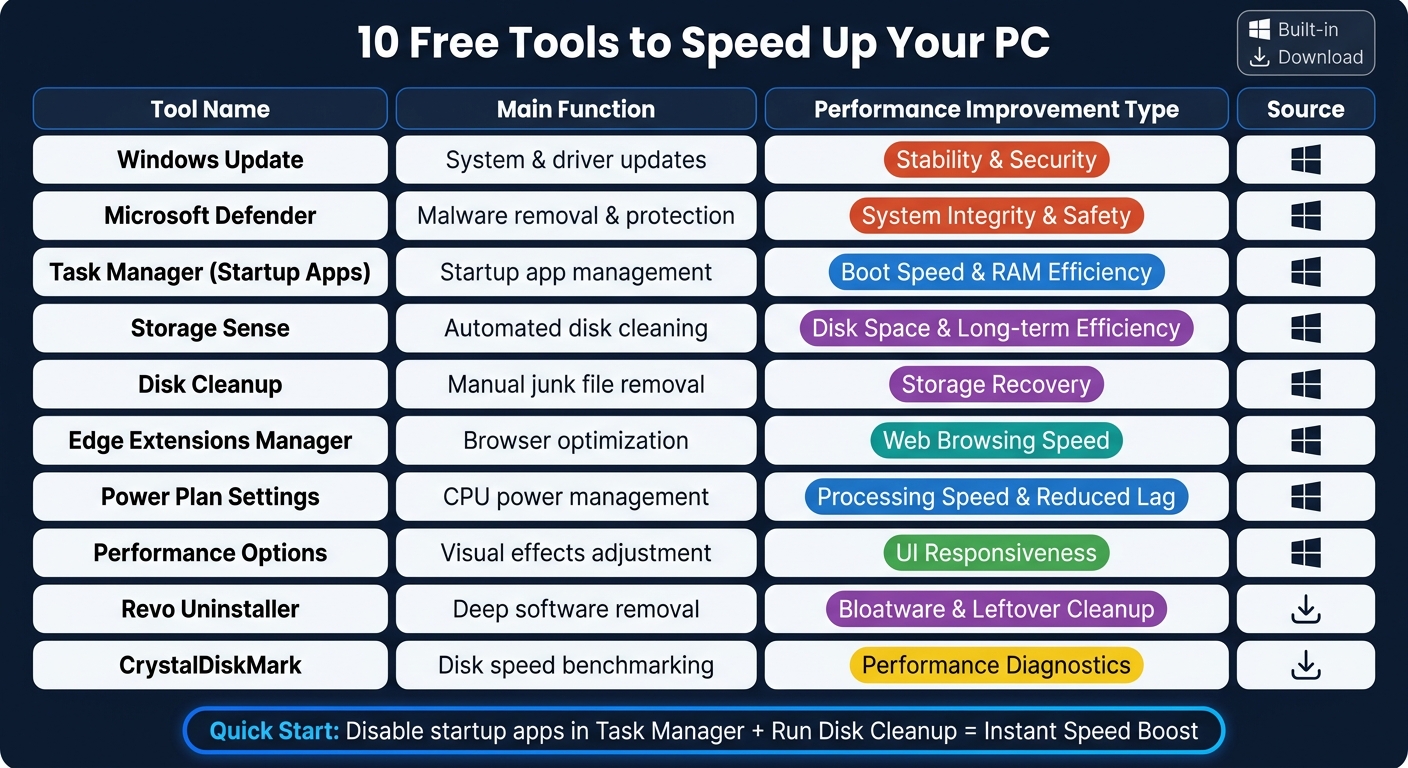
10 Best Free Apps to Speed Up Your PC: Quick Comparison
Optimization tools serve different purposes: some speed up boot times, others free up storage space, and a couple require separate downloads. Below is a straightforward comparison of the tools mentioned in this article, summarizing their functions, benefits, and origins for easy reference.
| Tool | Main Function | Performance Improvement Type | Source |
|---|---|---|---|
| Windows Update | System & driver updates | Stability and security | Built-in |
| Microsoft Defender | Malware removal and protection | System integrity and safety | Built-in |
| Task Manager (Startup Apps) | Startup app management | Boot speed and RAM efficiency | Built-in |
| Storage Sense | Automated disk cleaning | Disk space and long-term efficiency | Built-in |
| Disk Cleanup | Manual junk file removal | Storage recovery | Built-in |
| Edge Extensions Manager | Browser optimization | Web browsing speed | Built-in |
| Power Plan Settings | CPU power management | Processing speed and reduced lag | Built-in |
| Performance Options | Visual effects adjustment | UI responsiveness | Built-in |
| Revo Uninstaller | Deep software removal | Bloatware and leftover cleanup | Download |
| CrystalDiskMark | Disk speed benchmarking | Performance diagnostics | Download |
These tools, all free to use, tackle specific PC performance issues ranging from startup delays to storage clutter. Depending on your needs, you can select the right tool to address the problem at hand.
For example, Task Manager and Power Plan Settings help optimize how your system uses resources in real time. Meanwhile, Disk Cleanup and Storage Sense focus on eliminating unnecessary files that accumulate over time. CrystalDiskMark is unique – it doesn’t directly improve performance but instead measures your disk speed, helping you identify potential bottlenecks before diving into other optimizations.
“PC optimization improves the life of your PC, and prevents the virus, bugs, malware from infecting your important and mission-critical data.” – Guru99
If you’re pressed for time, start with the built-in tools. Use Task Manager to manage startup programs and speed up boot times, then run Disk Cleanup to recover storage space. These two quick steps can address some of the most common reasons for a sluggish PC.
Conclusion
A sluggish PC doesn’t always mean it’s time for an upgrade. In fact, you can often restore your computer’s performance with free tools and utilities. Options like Revo Uninstaller and CrystalDiskMark, along with built-in Windows features, tackle common issues without costing a dime.
Start with quick fixes: disable unnecessary startup programs using Task Manager and run Disk Cleanup to clear out junk files. These simple steps can reduce boot times and free up valuable storage space in just minutes.
For long-term results, establish a light maintenance routine. Schedule Storage Sense to automatically manage temporary files, and once a month, use Revo Uninstaller to clean out unused programs and leftover registry entries. Consistent upkeep prevents gradual slowdowns, keeping your PC responsive and efficient.
“Choosing the right PC cleaner can save hours of frustration and noticeably improve system speed and responsiveness.” – Guru99
Many of these tools are already built into Windows, so you can start improving your PC’s performance today.
FAQs
What should I try first to speed up my PC?
To give your PC a quick performance boost, consider using a system optimization tool like Microsoft PC Manager. With just one click, it can clean out junk files, manage startup programs, and free up RAM. This tool streamlines key tasks into a simple interface, making it an easy and effective way to enhance your computer’s speed.
Which startup apps are safe to disable?
If your computer feels sluggish during startup, it might be time to manage your startup apps. Many programs, like gaming clients or messaging apps, don’t need to run automatically unless you use them every day. You can safely disable these to free up resources.
To do this, open the Task Manager and head to the Startup tab. Here, you’ll find a list of apps along with their “Startup Impact” rating. Focus on disabling apps with a high impact that aren’t essential to your daily tasks.
However, be cautious. Avoid disabling system-critical services or apps you’re unfamiliar with, as this could lead to stability issues. When in doubt, it’s better to leave those alone.
How can I tell if my SSD is causing the slowdown?
If your SSD is slowing things down, you might notice signs like longer read/write times, unusually high usage (anywhere between 50% and 100%), or sluggish performance when downloading large files. These problems can stem from things like thermal throttling, error correction processes kicking in, or even degraded NAND charge levels over time. To get a clearer picture, try using drive health monitoring tools to check its performance. Another option? Temporarily disconnect other drives to see if the SSD is the main culprit.
Related Blog Posts
- How to Solve Hanging Problem in Laptop: Basic Steps
- How to Solve Lag Problem in Laptop: A Step-by-Step Guide
- How to make your laptop not overheat with simple steps
- 7 Ways to Free Up Disk Space on Windows
Did this solve your problem?
Your answer helps Supportia prioritize updates. No account or email is required.