
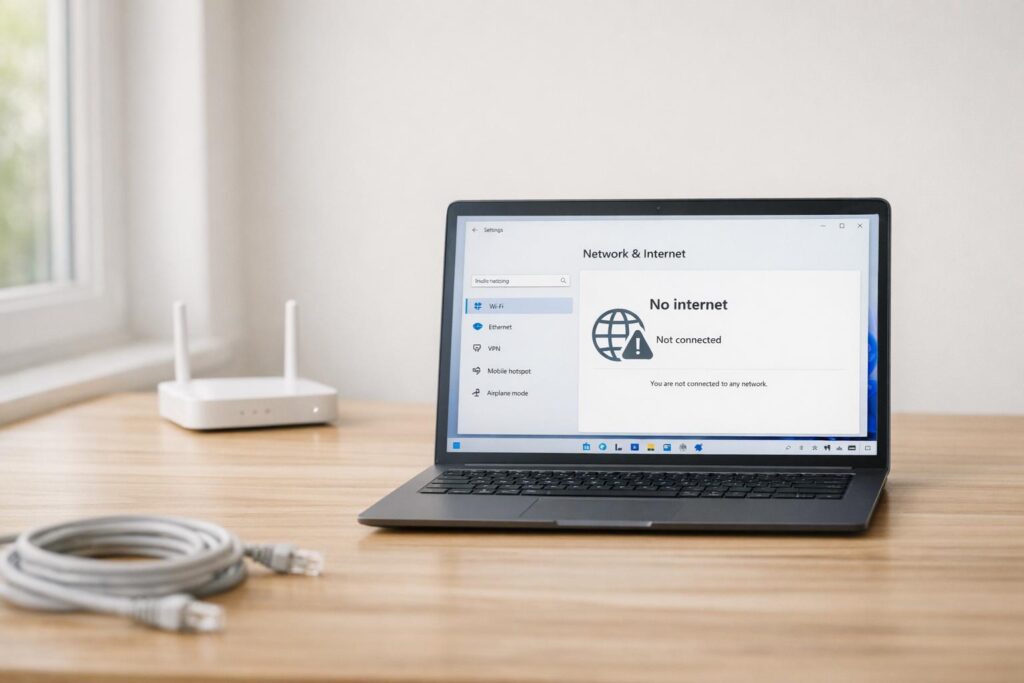
When your internet connection suddenly fails, it can disrupt your workflow, entertainment, or studies. For those tackling technical issues or aspiring to work in IT support, understanding how to professionally diagnose and resolve such problems is invaluable. This comprehensive guide will walk you through a structured, expert-level troubleshooting process for fixing “No Internet” issues on Windows 11.
Whether you’re a tech enthusiast, a gamer, or an early adopter, this tutorial will empower you with actionable skills to tackle one of the most common IT problems. Let’s dive in!
Understanding the Problem
When a user reports “No Internet”, the issue could stem from various causes: Wi-Fi disconnection, hardware failure, software misconfigurations, or even broader network outages. The key to solving this is a systematic approach that identifies the root cause without resorting to trial-and-error fixes.
This guide is structured into 11 practical steps to help you think and work like a real IT professional.
Step-by-Step Troubleshooting for No Internet on Windows 11
Step 1: Clarify the Problem
Before diving into fixes, gather more information about the issue. Ask the following questions:
- Are you using Wi-Fi, Ethernet, or both?
- Are other devices experiencing the same issue?
- When did the problem start? Was the connection working earlier today?
By clarifying these details, you can determine whether the issue is device-specific, network-wide, or related to external factors.
Step 2: Check Network Connectivity on the User’s Side
Remotely access the user’s machine using a remote control tool. Once logged in, inspect the network status:
- Look at the bottom-right corner of the taskbar for the network icon.
- If the globe icon says “No Internet Access”, the system is disconnected.
- If the icon is connected but still shows issues, the problem may be deeper.
Step 3: Toggle Wi-Fi On and Off
Even if the Wi-Fi appears connected, toggling it off and back on helps reset the wireless adapter session. Here’s how:
- Click the network icon in the taskbar.
- Turn off Wi-Fi and wait 5 seconds.
- Turn it back on.
This simple step often resolves temporary connectivity glitches.
Step 4: Check for Airplane Mode
Ensure Airplane Mode is not accidentally enabled, as this disables all network connections.
- Go to the Action Center or Quick Settings.
- If Airplane Mode is highlighted, click to turn it off.
Accidental toggling of this feature is a surprisingly common issue.
Step 5: Verify Network Adapter Status
If the issue persists, check the status of the network adapter:
- Right-click the Start menu and select Device Manager.
- Expand the Network Adapters section.
- Look for the wireless adapter (e.g., “Wi-Fi” or “Wireless Network Adapter”).
- If the adapter is disabled (down arrow icon), right-click and select Enable.
- If already enabled, the problem lies elsewhere.
Step 6: Test Internet Connectivity with CMD
Open the Command Prompt (CMD) to test if the device can reach the internet:
-
Type
cmdin the Windows search bar and press Enter. -
In the Command Prompt, run:
ping google.com - If you receive replies, the internet is working. If you see “Request timed out”, there’s no active connection.
Step 7: Check IP Configuration
Still no internet? Check the machine’s IP configuration:
-
In CMD, type:
ipconfig -
Look for the IPv4 Address under the wireless adapter.
- A proper home network IP typically starts with
192. - Office networks often use
172or10. - If the IP starts with
169, the device is failing to obtain an IP address from the DHCP server, indicating a deeper issue.
- A proper home network IP typically starts with
Step 8: Release and Renew IP Address
If the IP configuration shows issues, use networking commands to refresh it:
-
In CMD, type:
ipconfig /releaseThis releases the current IP address.
-
Then type:
ipconfig /renewThis requests a new IP address from the network’s DHCP server.
This step is particularly effective for resolving IP-related conflicts or errors.
Step 9: Perform a Network Reset
When all else fails, consider resetting the network settings. This should be your last resort:
- Go to Start > Settings > Network & Internet > Advanced Network Settings.
- Scroll down and select Network Reset.
- Confirm the reset.
Keep in mind that this will remove all saved Wi-Fi networks, so you’ll need to reconnect manually afterward.
Step 10: Check Physical Connections
For users on Ethernet:
- Inspect the cable (often a Cat 5 or Cat 6 cable).
- Ensure it’s securely plugged into both the computer and the wall port.
- Look for a blinking light on the Ethernet port. No light may indicate a faulty cable or hardware issue.
For extra verification, try using a different cable or port.
Step 11: Reboot the Machine
Sometimes, the simplest solution works. A full system reboot can resolve software conflicts or refresh drivers. Always reboot after making significant changes.
The Power of Documentation
Once resolved, document every step taken to fix the issue. This helps your team understand the actions performed and provides a reference if the user encounters the problem again. Your ticket notes should look something like this:
- Verified user is connected to Wi-Fi.
- Toggled Wi-Fi off/on.
- Checked Airplane Mode.
- Confirmed network adapter status and enabled it.
- Ran
ping google.comand tested connectivity. - Used
ipconfigto confirm IP address was not169.x.x.x. - Executed
ipconfig /releaseandipconfig /renew. - Performed a network reset.
- Rebooted the machine.
Key Takeaways
- Start with the Basics: Always clarify the problem and check simple fixes like toggling Wi-Fi or Airplane Mode.
- Use Diagnostic Tools: The CMD commands
pingandipconfigare critical for identifying connectivity and IP issues. - Understand Network Adapters: Knowing how to check and enable adapters is essential for troubleshooting.
- Be Systematic: Follow the steps in order to avoid unnecessary resets or changes.
- Document Everything: Proper documentation ensures continuity and helps team members assist users efficiently.
Conclusion
Fixing “No Internet” issues in Windows 11 doesn’t have to be a daunting task. By adopting a structured, professional approach, you can save time and frustration while improving your troubleshooting skills. Whether you’re solving problems for yourself or working in IT support, these steps will prepare you to handle one of the most common tech challenges like a pro.
Mastering these techniques not only resolves current issues but also builds foundational IT knowledge for real-world scenarios. Now, the next time you see that dreaded “No Internet” message, you’ll know exactly what to do.
Happy troubleshooting!
Source: “No Internet? Fix It Like IT Support (Step-by-Step Guide)” – IT Edge Network, YouTube, Apr 16, 2026 – https://www.youtube.com/watch?v=kawQTltzdBI
Related Blog Posts
- Tech Problem Solving: A Step-by-Step Guide
- How to Solve Cursor Problem in Laptop: Quick Fixes
- How to Fix Laptop WiFi: A Step-by-Step Guide
- Rollback Windows Updates: Step-by-Step Guide
Did this solve your problem?
Your answer helps Supportia prioritize updates. No account or email is required.