Most smart home problems come from a few repeat issues: Wi-Fi drops, weak signal, app sync bugs, battery drain, bad automation logic, device mismatch, and firmware trouble. In 2026, Wi-Fi instability, router overload, and firmware mismatches are the top three causes. So if your device shows offline, ignores commands, or stops working after an update, I’d start there first.
Here’s the short version of what I’d check:
- Connectivity drops: reboot the router, check the 2.4 GHz channel, and test the device closer to the router
- Devices not responding: test in the brand app first, then re-link Alexa or Google Home if needed
- Weak range: look for low signal, move the hub, or add a powered repeater
- Fast battery drain: replace weak batteries, reduce sensor activity, and check lock alignment
- Compatibility problems: confirm the device uses the same protocol as the hub and the right Wi-Fi band
- App glitches: force-close the app, clear cache, and review phone permissions
- Automation failures: check logs, time zone, geofencing, and renamed devices
- Update-related problems: review firmware update schedules, then check router settings like WPA2-AES and 20 MHz on 2.4 GHz
A few numbers help show where to look first: 34% of failures tie back to Wi-Fi problems, 21% of troubleshooting questions involve “No Response” errors, and 6% come from battery or power issues.
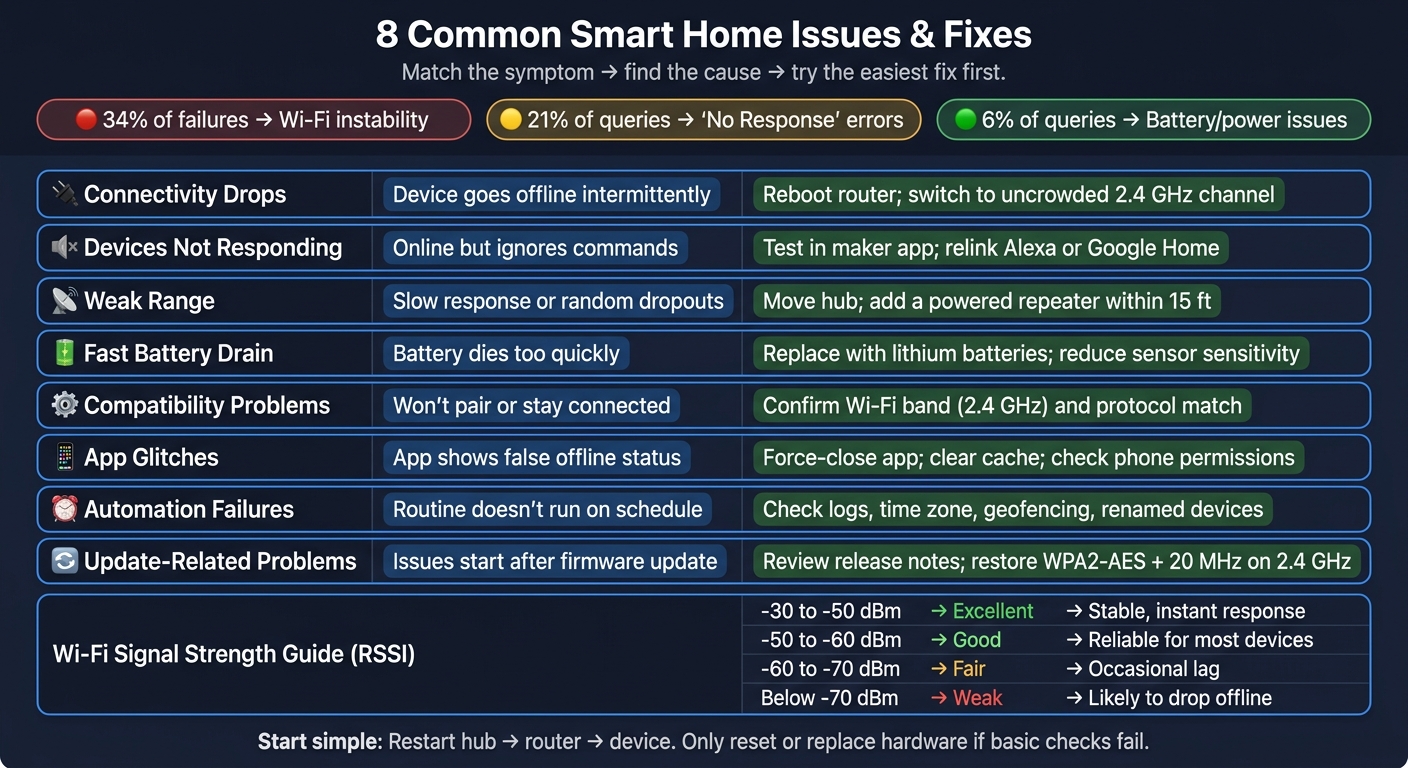
8 Common Smart Home Issues: Symptoms & Fixes at a Glance
This is EXACTLY how I fix my smart home.
sbb-itb-dc5b06c
Quick Comparison
| Issue | Main sign | First thing I’d do |
|---|---|---|
| Connectivity drops | Device goes offline on and off | Reboot router and test signal near the router |
| Devices not responding | Looks online but ignores commands | Check the maker app, then re-link voice assistant |
| Weak range | Slow response or random dropouts | Move hub or add a powered repeater |
| Fast battery drain | Battery dies too often | Replace batteries and check device distance |
| Compatibility problems | Device won’t pair or stay connected | Confirm Wi-Fi band and protocol match |
| App glitches | App shows false offline status | Force-close app and clear cache |
| Automation failures | Routine does not run on schedule | Check logs, trigger, and time settings |
| Update-related problems | Trouble starts after firmware or router update | Review update notes and router settings |
The main idea is simple: match the symptom to the cause, try the easiest fix first, and only reset or replace hardware if the basic checks fail.
Connectivity and Response Problems
These are the first things to check when the issue looks like a network, sync, or range problem. If the table points to Wi-Fi, hub, or sync trouble, start here.
1. Connectivity Drops
Wi-Fi instability causes 34% of smart home failures. In most homes, the usual culprits are crowded 2.4 GHz channels, poor router placement, or a router trying to do too much at once.
A few fixes tend to solve this fast:
- Move your router to a central, open spot. Keep it away from metal appliances and cabinets that can weaken the signal.
- Use a Wi-Fi Analyzer app to see whether your 2.4 GHz channel is crowded. If Channel 6 is packed, switch manually to Channel 1 or 11.
- In larger homes, a mesh network can help cover dead zones.
- Keep low-bandwidth sensors on 2.4 GHz. Save 5 GHz or 6 GHz for cameras and streaming devices.
If the device still shows offline or unresponsive after that, move on to sync and app checks.
2. Devices Not Responding
When a device looks online but ignores commands, the issue is usually somewhere between power, Wi-Fi, the hub, the cloud, or app sync. "No Response" errors account for 21% of smart home troubleshooting queries in 2026.
Start with the manufacturer's app. If the device works there but not in Alexa or Google Home, the issue is with the voice-assistant integration, not the device itself. In that case, unlinking and relinking the service in the voice assistant settings often clears it.
If the device does not respond anywhere, restart the modem, router, hub, and then the device. If it keeps losing its IP address after power outages, set a DHCP reservation in your router settings to prevent conflicts.
It is also worth checking router security settings. Features like "AP Isolation", "Multicast Filtering," or "router optimization features" can block the device discovery that smart home gear relies on. Turning those off often fixes stubborn "No Response" errors without touching the hardware.
If the device responds in its own app but not in voice control, the problem is the integration, not the device.
3. Weak Range to Hubs or Sensors
Zigbee, Z-Wave, and Thread signals can drop off fast around walls, metal, mirrors, tanks, and masonry. A device may work fine in an open room, then act flaky once it is tucked behind a refrigerator or placed across a concrete wall.
A simple first check: test that location with your phone. If your phone struggles there, the smart device probably will too. For a closer look, check the RSSI reading in the device app. Anything below -70 dBm is weak and more likely to go offline or lag.
| Signal Level (RSSI) | Quality | What to Expect |
|---|---|---|
| -30 to -50 dBm | Excellent | Stable, instant response |
| -50 to -60 dBm | Good | Reliable for most devices |
| -60 to -70 dBm | Fair | Occasional lag |
| Below -70 dBm | Weak | Likely to drop offline or lag |
Battery sensors do not repeat signals. Powered plugs and bulbs do. So if one device is struggling, add a powered repeater halfway between the hub and that weak device, then run a Network Heal.
Also, keep Zigbee or Z-Wave gateways about 3 to 6 feet away from your Wi-Fi router to cut down on interference.
If moving things around fixes the signal, rerun your automations after the mesh has time to settle.
Power, Compatibility, and App Issues
If signal strength and range look fine, the issue usually comes down to power, device match, or app sync.
4. Fast Battery Drain
Once the connection is stable, the next trouble spots are usually power, device match, or app sync. Battery and power issues make up 6% of all smart home troubleshooting queries. The good news? The fix is often pretty simple. In many cases, the problem comes from cheap batteries, a weak link to the gateway, or sensors waking up far too often.
Cheap batteries can set off false low-battery warnings. A simple battery swap often fixes it. Branded lithium cells like Energizer, Duracell, or Panasonic are a better pick, especially for outdoor sensors and smart locks in cold weather. Standard alkaline batteries lose capacity when temperatures drop, while lithium holds up much better.
For motion sensors in high-traffic spots, lower the sensitivity to "Low" and add a longer cooldown so the sensor doesn't keep firing over and over. If a device is still chewing through batteries every month, distance is often the problem. It may be too far from the hub and trying to reconnect again and again. Putting a powered repeater within 15 feet of that device can cut that drain.
Smart locks need one extra check: alignment. If the deadbolt rubs against the strike plate, the motor has to work harder every time it locks or unlocks. Make sure the bolt moves freely with no resistance before blaming the battery.
After you replace the battery, trigger the device by hand. Open the door or walk past the sensor so it wakes up and sends its new 100% battery status to the app.
If battery life looks normal, the next thing to check is whether the device and hub are even speaking the same language.
5. Compatibility Problems
Band steering can push devices onto a band they can't use. Splitting your Wi-Fi into separate SSIDs, like "HomeNetwork_2.4" and "HomeNetwork_5G," keeps each device on the right one.
Protocol mismatch is another common snag. A Zigbee sensor won't pair with a Z-Wave hub. A device that only supports Wi-Fi won't work with a Zigbee coordinator. Before you buy anything, compare the device's supported protocols with your hub's spec sheet. If you're mixing brands and protocols, a universal hub can act as the middleman. For newer devices, check for the Matter logo. Matter was built for cross-brand compatibility.
There's also a timing detail that trips people up. Matter-enabled devices only broadcast their setup signal for 15 minutes after power-on. If the app misses that window, unplug the device and plug it back in to restart pairing.
If pairing works but control still doesn't, the problem may not be the device at all. It may be the app.
6. App Glitches
A lot of "broken" devices aren't broken. The app is just out of sync. Sync and permission problems cause many false offline alerts.
Start with the fastest fix: force-close the app and open it again. That alone often clears fake "offline" statuses when the device is working but the app hasn't updated yet. If that doesn't do it, check your phone permissions. When Local Network, Bluetooth, or Location access is blocked, many smart home apps can't find or sync devices.
For stubborn problems, clear the app cache. On Android, open the app settings and tap "Clear Cache." On iOS, delete the app and reinstall it. Also check whether your phone's battery saver is shutting the app down in the background. If you exclude smart home apps from battery optimization, your phone is less likely to cut off background sync and notifications.
If the device works in its own app but not in a connected platform, the account link may be stale. Signing out and back in, or turning the integration off and back on, often refreshes that connection.
Automation and Update Problems
If a device works when you control it by hand but fails on a schedule, the issue usually comes from the automation setup or a recent update.
7. Automation Failures
Start with the automation log. If the trigger never fired, check the time, app permission, or any missing prerequisite. If it did fire but nothing happened after that, rebuild the action chain.
Some causes show up over and over:
- Daylight Saving Time can shift time-based routines by an hour if the hub uses the wrong time zone.
- Location changes can break geofencing routines.
- Renamed devices can break automations that still point to the old name.
If the routine looks fine but still acts up, delete it and build it again from scratch. That sounds a little blunt, but it often works. You can also make a simple test routine first: one trigger and one obvious action, like turning on a single light. That gives you a quick way to see whether the basic logic works before you pile on extra conditions.
If the log looks normal, move on to the update check.
8. Update-Related Problems
If app sync and automation logic look fine, the trouble often starts with firmware or router settings.
First, check whether the issue began right after an update. Before you touch any hardware, read the manufacturer's release notes for known bugs or firmware prerequisites. A lot of update trouble leaves clues there.
Router updates can reset band steering, WPA3, or 2.4 GHz channel width settings and knock older devices offline. If devices disappeared right after a router update, check those settings first. Restore WPA2-AES security and 20 MHz channels before you assume the devices are dead.
When you restart things after an update, sequence matters. Reboot the hub or border router first so it can clear its cache. Then power cycle the affected devices.
If the device works in its own app but not in Alexa or Google Home, relink the integration.
Conclusion: The Fixes That Solve Most Smart Home Problems
Once you’ve worked through the eight fixes above, use a simple rule to decide what to do next: figure out whether the problem comes from the network, signal range, power, the app, device match-up, automation, or a recent update.
Then start with the easiest move first. Restart the hub, then the router, then the device. In a lot of cases, that clears things up. If it doesn’t, check firmware and take a closer look at your network.
It also helps to keep firmware current and make sure Wi-Fi coverage stays steady across your home.
One small habit can save a lot of time later: write down new devices you add and any network changes you make. When something breaks, that record makes the cause much easier to trace.
Most smart home problems can be fixed at home if you follow a clear troubleshooting order.
FAQs
Why do smart home devices keep going offline?
Smart home devices usually go offline because of network instability, router limits, or physical interference.
The most common reasons are weak Wi‑Fi, too many connected devices, and poor router placement near thick walls or metal. Another common issue is switching to 5 GHz when a device only works on 2.4 GHz.
Other causes include outdated firmware, cloud outages, power interruptions, and IP address conflicts.
How do I know if my device is using the wrong Wi-Fi band?
Check your router’s app or web interface to see whether the device is on 2.4 GHz or 5 GHz. If both bands share the same network name, band steering may be pushing the device onto the wrong band.
A band problem often shows up as uneven performance or frequent disconnects. If that’s happening, split the bands into separate SSIDs in your router settings.
What should I check before resetting a smart home device?
Before a factory reset, treat it as a last resort. It wipes personalized settings and local data.
Start with the basics first. Check the power, battery level, and whether the outlet is working. Then look at your internet connection, the device’s distance from your router or hub, the status lights, and the firmware.
Next, try a simple power cycle: unplug the device for 30 seconds.
If the problem still doesn’t go away, contact Supportia for help.