When your USB keyboard or mouse stops working, it can feel like everything comes to a halt. These issues are common and often caused by outdated drivers, faulty hardware, or system settings. Here's a quick breakdown of what you need to know to fix and prevent these problems:
- Common Symptoms: Unresponsiveness, input lag, erratic behavior, or intermittent disconnects.
- Quick Fixes: Reconnect the device, try another USB port, check batteries (for wireless), or test on another computer.
- Troubleshooting Steps: Update or reinstall drivers via Device Manager, disable USB power-saving settings, and inspect cables or connectors for damage.
- Prevention Tips: Regularly clean your devices, keep drivers updated, and avoid overloading USB hubs.
If your device still doesn’t work, it might be a hardware issue requiring replacement. Follow these steps to ensure your peripherals stay functional and reliable.
Ultimate Guide to Fix Mouse and Keyboard Disconnectivity Issues (2024)
sbb-itb-dc5b06c
How to Spot and Diagnose USB Keyboard and Mouse Problems
Before diving into troubleshooting, it’s important to identify the specific issue. USB keyboard and mouse problems often fall into predictable patterns, and recognizing these can save you a lot of time and effort.
Common Symptoms to Look For
The most obvious red flag is complete unresponsiveness - no cursor movement, no keystrokes registering. Check for LED lights on your keyboard or mouse; if they’re off, it’s a sign of a power or connection issue.
But not all problems are so clear-cut. Keep an eye out for these:
- Intermittent disconnects: The device frequently disconnects and reconnects. This could stem from a damaged cable, low batteries, or even wireless interference.
- Input lag: There’s a noticeable delay between your actions and the on-screen response.
- Erratic behavior: This includes typing incorrect characters, keys that seem "stuck", or a mouse that moves unpredictably. These could point to recognition issues.
If your keyboard works fine in the BIOS but stops functioning when Windows loads, the problem is almost always related to drivers or software conflicts, not hardware.
Once you’ve identified the symptoms, use the steps below to narrow down the cause.
Quick Diagnostic Steps
Start with the simplest fix: unplug the device, wait 10 seconds, and plug it back in. This reloads the driver and can resolve minor glitches. If that doesn’t work, try connecting the device to a different USB port. On desktops, the rear motherboard ports often provide a more reliable connection than front-panel ports.
Next, test the keyboard or mouse on another computer. If the issue persists, the hardware is likely faulty. If it works fine, the problem lies with your PC. For wireless devices, always check the battery or charge level first - low power is a frequent culprit for lag or intermittent behavior.
Finally, open Device Manager in Windows and look for yellow exclamation marks under "Keyboards" or "Mice and other pointing devices." These symbols indicate driver errors or recognition problems. This step helps you determine whether the issue is hardware-related or tied to software, guiding your next steps.
How to Fix USB Keyboard and Mouse Problems
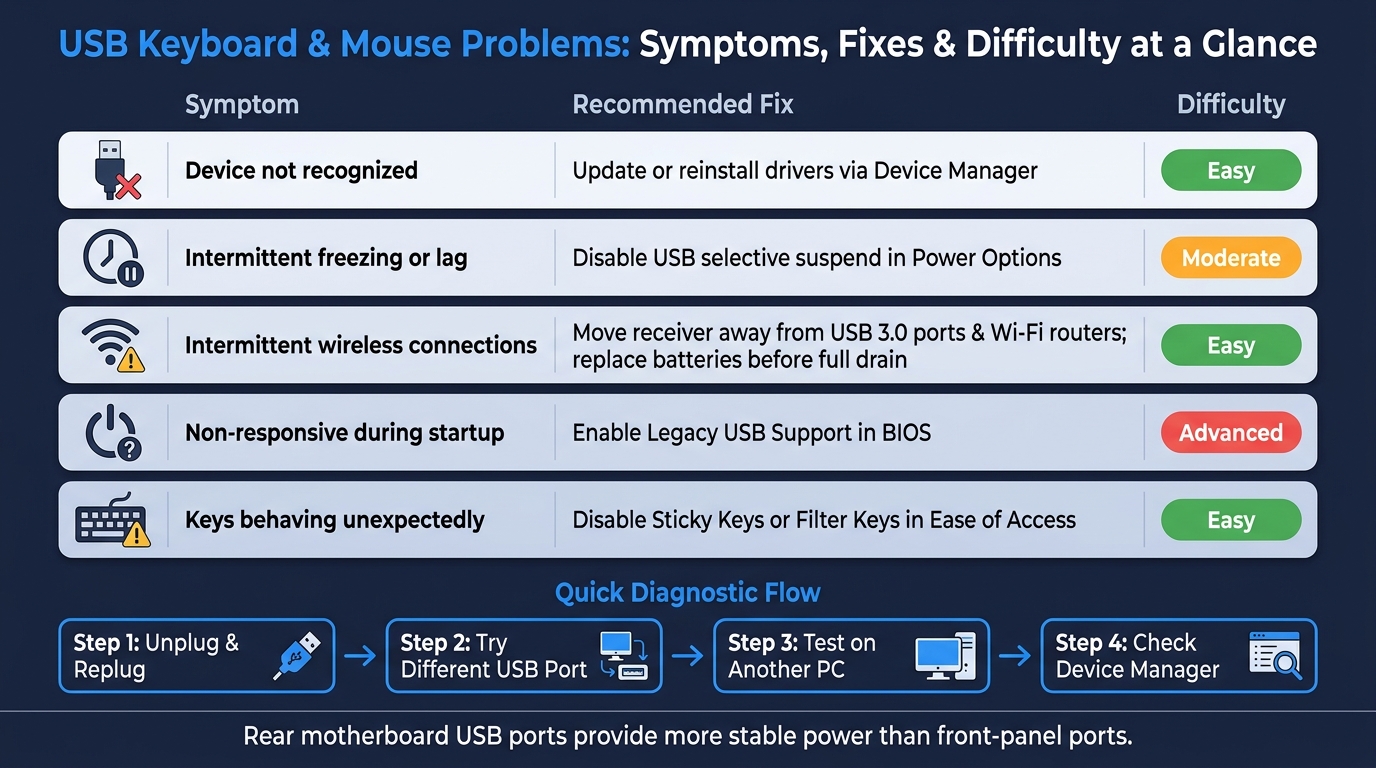
USB Keyboard & Mouse Problems: Symptoms, Fixes & Difficulty at a Glance
Once you’ve identified the root of the issue, fixing it is usually straightforward. The steps below are grouped by category, so you can jump to what applies to your situation.
Hardware Checks and Fixes
Start by inspecting your device for physical damage. Check for frayed cables, bent USB connector pins, or any debris blocking the optical sensor on your mouse. Clean the keys with compressed air and use a microfiber cloth to wipe the mouse sensor.
If the device still doesn’t work, try plugging it into a rear motherboard USB port instead of a front-panel port. Rear ports often provide more stable power. Also, avoid using unpowered USB hubs if you’re running multiple peripherals. Too many devices sharing the same hub can cause power overdraw, leading to port or device shutdowns.
"Sometimes too many USB devices can overdraw power which causes certain USB ports and devices to shut off." - TechCommuters
If the device fails to work on multiple computers, it’s likely defective and may need replacement. If no hardware issues are found, it’s time to look into drivers and system settings.
Driver and Software Fixes
Driver problems are often to blame when hardware seems fine but doesn’t work properly. To address this, open Device Manager (press Windows key + X, then select Device Manager), expand Keyboards or Mice and other pointing devices, right-click on your device, and select Update driver > Search automatically for updated driver software. If this doesn’t fix the problem, try selecting Uninstall device and restarting your computer - Windows will reinstall the driver automatically during reboot.
Another potential issue is power management settings. Windows sometimes disables USB ports to save energy, which can cause random disconnects. To disable this, go to Device Manager, right-click USB Root Hub, select Properties, navigate to the Power Management tab, and uncheck "Allow the computer to turn off this device to save power." Additionally, you can disable USB selective suspend by opening Power Options, selecting Change advanced power settings, expanding USB settings, and setting it to Disabled. If you suspect software conflicts, boot into Safe Mode to see if third-party applications are interfering with your devices.
| Fix Method | Best For | Difficulty |
|---|---|---|
| Device Manager Update | Device lag or recognition errors | Low |
| Uninstall & Restart | Corrupted or "Device Not Recognized" errors | Medium |
| Power Management Tweak | Intermittent disconnects or "sleeping" devices | Medium |
| Safe Mode Boot | Driver conflicts or software-related issues | High |
Once the drivers are updated, you can move on to addressing wireless-specific issues if applicable.
Fixing Wireless and Bluetooth Issues
If your device is wireless, start by checking the simplest solutions first. Replace the batteries or recharge the device - low power is the most common reason wireless devices stop working.
"The battery is typically the reason for wireless mice not working." - Roopesh Adihalli, Engineering Graduate and Tech Enthusiast
Don’t forget to check the power switch on the underside of the device - it’s easy to miss. If the device is powered on but unresponsive, unplug the USB receiver, wait 10 seconds, and then plug it back in to force the system to re-recognize it.
Signal interference is another common issue. Devices like USB 3.0 peripherals and 2.4 GHz Wi-Fi routers near your wireless receiver can disrupt the connection. A quick fix is to use a short USB extension cable to move the receiver closer to your keyboard or mouse and away from other electronics. For Bluetooth devices, go into your system’s Bluetooth settings, remove the device, put it back into pairing mode, and reconnect it. If the problem persists, try disabling Fast Start-up in Windows Power Options, as this feature can sometimes prevent USB devices from initializing correctly after boot.
How to Prevent USB Keyboard and Mouse Problems
It's much easier to avoid issues with your USB keyboard and mouse than to fix them after they arise. A little routine care can go a long way in keeping your devices working smoothly.
Safe Use and Basic Maintenance
Dust and debris are often the culprits behind malfunctioning peripherals. To keep your devices in top shape, clean them regularly - ideally once a month or whenever their performance starts to dip. Always disconnect the USB cable or remove the batteries before cleaning.
For keyboards, turn the device upside down and gently tap it to shake out loose debris. Follow that up with a blast of compressed air to clear out any dirt stuck between the keys. When cleaning a mouse, focus on wiping down the outer shell, the scroll wheel, and the optical sensor. Use a soft cloth or cotton swab dampened with a 70% isopropyl alcohol (IPA) solution to disinfect surfaces, but never apply liquid directly onto the device.
"Cleaning your Microsoft device is important to prevent dirt accumulation from affecting its functions." - Microsoft Support
It's also a good idea to inspect your USB cables regularly. Look for signs of wear, like fraying or bent connectors, which can lead to connection problems. Avoid bending cables sharply, especially near the connector, to extend their lifespan.
System Settings to Keep Things Running Smoothly
Physical maintenance is just one part of the equation. Tweaking your system settings can also help prevent connectivity issues. Start by keeping your drivers and BIOS up to date. Use Windows Update (Settings > Update & Security > Check for updates) to automatically download the latest Microsoft-approved driver updates.
Another important step is adjusting your power settings. Windows sometimes powers down USB ports to save energy, which can lead to random disconnects. To stop this, go to Control Panel > Power Options > Change plan settings > Advanced power settings. Expand the USB settings section and disable USB selective suspend.
If your mouse stutters during heavy system activity, background processes like file indexing could be to blame. You can reduce this by setting the Windows Search service to Manual startup. Open services.msc, locate the service, and adjust its startup type to limit resource usage.
Choosing Reliable Keyboards and Mice
The right hardware can save you from a lot of headaches. When shopping for new peripherals, look for HID-compliant devices. These adhere to universal standards, making them compatible with most operating systems right out of the box - no extra software needed . Before buying, check the manufacturer's website to confirm they offer updated drivers for your operating system, especially if you're using Windows 11.
For wireless devices, consider models with features that make life easier, like low-battery indicators, the ability to work in wired mode while charging, and physical reset buttons for quick reconnections if the signal drops . Additionally, choose designs with fewer deep crevices around the keys or sensor area, as these spots tend to collect debris and can be harder to clean.
Conclusion: Key Takeaways and Next Steps
Wrapping Up the Best Fixes and Prevention Tips
USB keyboard and mouse issues often boil down to a few common causes, and fixing them is usually straightforward once you pinpoint the problem. Start with the basics: unplug and replug the device, try a different USB port (rear ports on desktops tend to be more reliable), or test the device on another computer to rule out hardware issues. If the problem seems software-related, focus on updating drivers and checking port configurations on your system.
Here’s a quick guide to match common symptoms with their fixes:
| Symptom | Fix | Difficulty |
|---|---|---|
| Device not recognized | Update or reinstall drivers via Device Manager | Easy |
| Intermittent freezing or lag | Disable USB selective suspend in Power Options | Moderate |
| Intermittent wireless connections | Move receiver away from USB 3.0 ports and Wi-Fi routers; replace batteries before full drain | Easy |
| Non-responsive during startup | Enable Legacy USB Support in BIOS | Advanced |
| Keys behaving unexpectedly | Disable Sticky Keys or Filter Keys in Ease of Access | Easy |
For long-term reliability, don’t forget the basics: keep drivers updated and clean your devices regularly. These small steps can save you from bigger headaches down the road.
If your keyboard completely stops responding, try running msdt.exe -id DeviceDiagnostic in the Windows Run dialog. This built-in troubleshooter can help identify and resolve issues. You can also use the On-Screen Keyboard (found in Ease of Access) to navigate while troubleshooting.
Keep Learning and Stay Ahead
USB peripheral problems are frustrating, but they’re almost always solvable with the right steps. Regular maintenance, driver updates, and attention to system settings can prevent most issues before they start. For more troubleshooting guides, hardware tips, and tech insights, visit Supportia. There's always something new to learn!
FAQs
How can I tell if it’s the USB port or the device?
To figure out whether the problem lies with the USB port or the device, try these steps:
- Plug the device into a different USB port: If it functions properly, the initial port might have an issue.
- Use a different device in the same port: If this device works fine, the original one could be the culprit.
- Check for physical damage or debris: Examine the port and connector for any signs of wear, damage, or dirt that might interfere with the connection.
Which Windows power settings can make USB devices disconnect?
Windows power settings, such as 'Allow the computer to turn off this device to save power' in Device Manager and the USB selective suspend setting in advanced power options, can sometimes lead to USB devices disconnecting unexpectedly. To address this issue, disabling these options for USB controllers and devices is a well-known solution that helps maintain stable connections.
What causes wireless mouse/keyboard dropouts near USB 3.0?
Wireless mouse and keyboard issues near USB 3.0 ports happen because USB 3.0 signals can interfere with 2.4 GHz wireless communication. This interference often results in a shorter range, missed inputs, or laggy responses. To avoid these problems, place wireless receivers as far as possible from USB 3.0 ports and devices.