
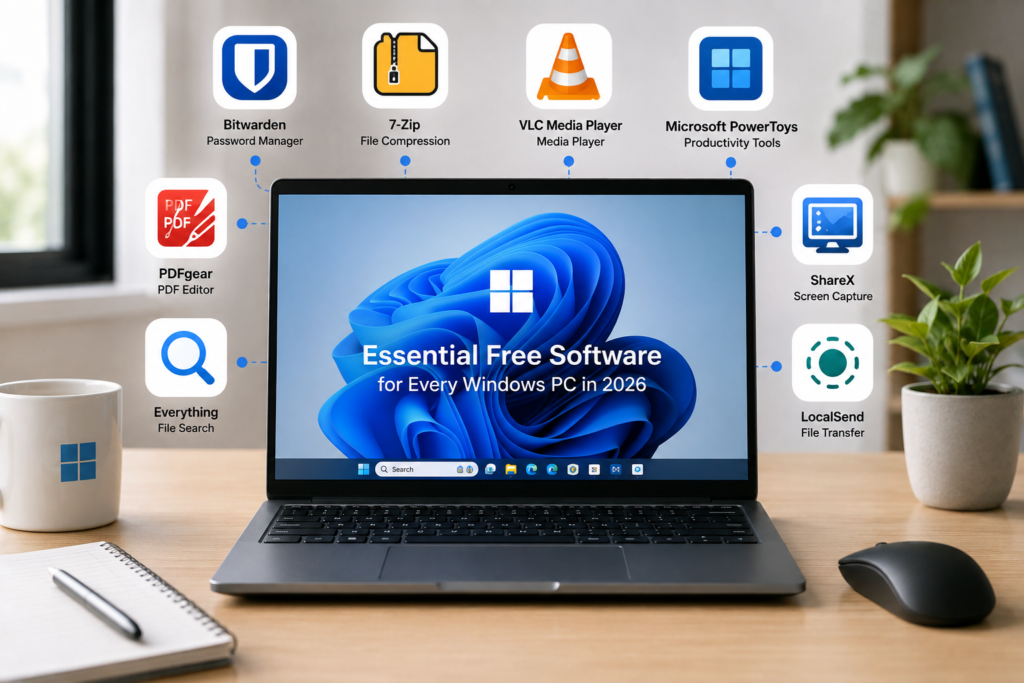
The best free software for most Windows PCs includes Microsoft PowerToys, 7-Zip, VLC Media Player, Bitwarden, PDFgear, Everything, ShareX, and LocalSend. You don’t need dozens of programs—the best setup is a small collection of reliable apps that fills gaps in Windows without adding unnecessary background processes or subscriptions.
Windows 11 already includes capable tools for browsing, security, screenshots, media, file management, and basic productivity. That means installing third-party software simply because someone calls it “essential” doesn’t necessarily improve your PC. In some cases, it just creates more updates, notifications, startup processes, and applications you’ll rarely open.
For this guide, we’ve narrowed the list down to eight free Windows apps we think are genuinely worth considering. Each solves a recognizable problem, from finding files instantly and managing passwords to editing PDFs and transferring files between devices.
Keeping whatever software you install updated is equally important. The U.S. Cybersecurity and Infrastructure Security Agency (CISA) recommends installing software updates promptly because they can fix security weaknesses as well as improve software reliability.
Quick Comparison
| Software | Best For | Why Install It? |
|---|---|---|
| Microsoft PowerToys | Windows productivity | Adds useful features and customization tools to Windows |
| 7-Zip | File compression | Makes extracting and compressing different archive formats easy |
| VLC Media Player | Video and audio | Plays a wide range of media formats |
| Bitwarden | Password management | Creates and stores unique passwords securely |
| PDFgear | PDF editing | Adds editing and document tools beyond basic PDF viewing |
| Everything | File search | Finds locally stored files and folders extremely quickly |
| ShareX | Screen capture | Adds advanced screenshot and recording tools |
| LocalSend | File transfers | Moves files directly between nearby devices |
How We Chose the Best Free Windows Software
To make this list, an application needed to provide genuinely useful functionality without requiring an immediate subscription, work reliably with current Windows PCs, and solve a common computing problem well enough to justify installing another program.
We also favored established or actively maintained software rather than obscure utilities with uncertain development or security practices. Most importantly, we avoided filling the article with multiple applications that perform essentially the same job.
This isn’t meant to be a checklist where every reader installs all eight programs. A photographer, student, office worker, gamer, and IT professional will naturally need different software. Instead, think of it as a shortlist of useful Windows apps worth considering when you encounter a limitation in the tools already built into your PC.
If artificial intelligence is a bigger part of your workflow, our comparison of the best AI productivity apps for Windows and Mac in 2026 covers ChatGPT, Claude, Microsoft Copilot, Gemini, Perplexity, and other AI-focused tools separately.
1. Microsoft PowerToys — Best for Windows Productivity
Microsoft PowerToys is one of the first programs we’d consider installing on a new Windows PC. Instead of replacing existing Windows features, it adds a collection of small utilities that make everyday tasks faster or provide controls Microsoft doesn’t include in the standard Windows interface.
FancyZones, for example, gives you much greater control over arranging application windows across a desktop or multiple monitors. PowerRename makes it easier to rename large groups of files at once, while Keyboard Manager can remap keys and shortcuts. Other utilities can keep a window permanently on top, extract text from parts of the screen, preview files, and quickly launch applications or commands.
The value of PowerToys is that you don’t have to use everything. Someone working across a large monitor might install it almost entirely for FancyZones, while a photographer or content creator could get more use from PowerRename when organizing hundreds of files.
Microsoft actively documents and develops the PowerToys collection, with its current utilities covering areas such as window management, keyboard customization, file handling, command launching, and other Windows productivity functions.
Rather than turning every feature on immediately, enable the utilities that solve frustrations you already have. PowerToys becomes much more useful when it’s treated as a toolbox rather than another application you need to learn from top to bottom.
Best for: Almost any Windows user who wants more control over everyday tasks.
2. 7-Zip — Best for File Compression
Download enough files on a Windows PC and you’ll eventually encounter ZIP, 7z, RAR, or another compressed archive. While Windows now handles common archive formats more effectively than older versions did, 7-Zip remains useful when you regularly work with compressed files or want more control over creating them.
The application integrates with Windows’ file menus, so extracting an archive or compressing a group of files usually takes only a few clicks. It supports its own 7z format and can work with or extract a wide range of other archive formats.
This makes it particularly handy when downloading software packages, receiving archived project folders, sending several files as one package, or reducing the size of data you want to store.
7-Zip isn’t visually impressive, and that’s almost the point. It’s a lightweight utility that performs one job well and stays out of the way when you don’t need it.
If you only encounter the occasional ZIP file, Windows’ built-in tools may already be enough. Install 7-Zip when compressed files are a regular part of your workflow rather than because every “must-have software” list tells you to.
Best for: Users who frequently download, compress, extract, or archive files.
3. VLC Media Player — Best Free Media Player
VLC earns its place on this list by solving a very familiar problem: you open a video or audio file and your usual application doesn’t handle it properly.
Rather than searching for another player or installing questionable codec packages, VLC can play a broad range of media formats within a single application. It also handles subtitles, multiple audio tracks, playback-speed controls, network streams, playlists, and several more advanced media functions.
Most people won’t use all of those capabilities. They don’t need to. VLC is valuable precisely because it can remain a straightforward media player until you encounter an unusual file or need one of its more advanced options.
VideoLAN, the nonprofit organization behind VLC, distributes the media player as free and open-source software.
Windows’ built-in media applications are perfectly adequate for many common files, so VLC isn’t mandatory for every PC. But if you regularly work with downloaded videos, older media libraries, different codecs, subtitles, or unusual file formats, it’s one of those utilities that’s useful to have available.
Best for: Anyone who regularly plays locally stored video or audio files in different formats.
4. Bitwarden — Best Free Password Manager
If you’re still using variations of the same password across email, shopping, social media, streaming, and other online accounts, Bitwarden can make a much bigger difference to your PC setup than another performance utility.
Instead of requiring you to remember dozens of complex passwords, Bitwarden stores credentials inside an encrypted vault. It can generate unique passwords for new accounts and autofill them when you return, making it practical to avoid password reuse without memorizing every credential.
For someone setting up a new Windows PC, this is particularly useful because signing into applications and websites is often one of the first things you’ll do. Installing a password manager early encourages better account habits from the start rather than trying to organize hundreds of credentials later.
Bitwarden isn’t the only good password manager, and users looking for family sharing, business administration, advanced monitoring, or different interfaces should compare alternatives. Our guide to the best password managers for individuals and small businesses in 2026 looks at Bitwarden alongside 1Password, NordPass, Dashlane, Keeper, Proton Pass, RoboForm, and Apple Passwords.
For an individual who primarily wants password generation, storage, synchronization, and autofill without immediately purchasing a subscription, Bitwarden is an excellent place to start.
Best for: Anyone who wants to stop reusing passwords and manage logins more securely.
5. PDFgear — Best Free PDF Editor
Modern Windows PCs can open PDFs through browsers such as Microsoft Edge without requiring a separate PDF reader. Viewing a PDF is therefore rarely a problem. Editing one is where the limitations become more obvious.
PDFgear fills that gap by providing tools for tasks such as editing text, adding annotations, reorganizing pages, completing forms, converting documents, and working with scanned PDFs. That makes it useful when a client sends a form that needs changes, you need to correct an invoice, or a document requires more than simply reading and printing it.
For students, freelancers, home users, and small businesses that only edit PDFs occasionally, starting with a free application makes sense. There’s little reason to immediately purchase professional document software if your typical requirement is making a few changes each month.
The situation changes when PDFs become an important part of your daily work. Legal teams, finance departments, and other organizations may require more sophisticated OCR, redaction, electronic signatures, security, or document collaboration. Our comparison of the best PDF editors for Windows and Mac in 2026 covers PDFgear alongside Adobe Acrobat Pro, Foxit PDF Editor, Nitro PDF Pro, PDFelement, and other professional alternatives.
Best for: Home users, students, freelancers, and small businesses that need more than basic PDF viewing.
6. Everything — Best for Finding Files Fast
Windows Search is convenient when you remember roughly what you’re looking for, but finding a specific local file can become frustrating on a computer containing years of downloads, documents, photos, project folders, and archived data.
Everything from Voidtools takes a much more focused approach. Start typing part of a filename or folder name and matching local results can appear almost immediately. Instead of trying to become another complete file-management system, the application concentrates on helping you locate files and folders by name as quickly as possible.
That makes it particularly useful for people who frequently know what a file is called but have forgotten where they saved it. Someone managing years of client documents, for example, may find it considerably faster to search for part of a filename than manually work through folders in File Explorer.
Everything is less essential if nearly all your work lives in online services and cloud-based applications. In that situation, your cloud provider’s own search tools may be more important. For a Windows PC with substantial local storage, however, Everything solves a very real everyday frustration.
Best for: Anyone with a large collection of locally stored files and folders.
7. ShareX — Best for Screenshots and Screen Capture
Windows’ built-in Snipping Tool is already good enough for basic screenshots, so installing another screen-capture application only makes sense if you regularly need more control.
That’s where ShareX becomes useful. You can capture a specific region, application window, full screen, or scrolling content and then annotate or process the result. It also supports screen recording and more advanced workflows that can reduce repetitive steps when you take screenshots frequently.
A customer support employee, for example, might use ShareX to capture an application window, add an arrow showing exactly where a setting appears, and save the finished image without moving through several different applications. Content creators and educators can use similar tools when producing tutorials and instructional materials.
ShareX does have more settings than a casual user will need. If you take one screenshot every few weeks, stay with Windows’ built-in tools. If screenshots are part of your daily work, the additional control becomes much easier to justify.
Best for: Content creators, educators, developers, support teams, and anyone who captures or annotates screens regularly.
8. LocalSend — Best for Moving Files Between Devices
Uploading a file to the cloud just to download it onto a device sitting beside you can feel unnecessarily complicated.
LocalSend provides a simpler option. Devices connected to the same local network can transfer files directly, making it useful for moving photos from a phone to a Windows PC, sending a document to a Mac, or transferring a large file between computers without first uploading it to an online storage service.
Cross-platform support is one of its biggest advantages. LocalSend is designed to work across Windows, macOS, Linux, Android, and iOS, which makes it particularly useful in homes and small workplaces where people don’t use the same operating system.
It shouldn’t be confused with cloud storage, however. LocalSend is primarily about transferring something from one nearby device to another. Cloud services are still more appropriate when you need off-site storage, automatic synchronization, backup capabilities, collaboration, or access to files while away from your local network.
For those broader requirements, our guide to the best cloud storage services for individuals and small businesses in 2026 compares Google Drive, OneDrive, Dropbox, iCloud Drive, Proton Drive, Sync.com, pCloud, and MEGA.
Best for: People who regularly transfer files between PCs, Macs, phones, and tablets on the same network.
The 5 Free Apps We’d Install First on a New Windows PC
If we were setting up a new Windows PC today, we wouldn’t immediately install every application in this article. We’d start with Microsoft PowerToys, 7-Zip, VLC Media Player, Bitwarden, and Everything.
Together, those five applications address some of the most common gaps in a fresh Windows setup: better productivity controls, broader archive support, flexible media playback, secure password management, and faster local file searching.
PDFgear would be our next addition if the computer regularly handles PDFs, while ShareX makes sense when screenshots or screen recordings are part of everyday work. LocalSend becomes particularly useful when files frequently move between the PC and phones, tablets, Macs, or other computers.
This approach is better than automatically installing a giant “essential software pack.” Start with the tools you’re likely to use immediately and add the others when you encounter the problem they’re designed to solve.
What to Consider Before Installing Free Windows Software
Free doesn’t automatically mean safe, lightweight, or worth installing. One of the easiest ways to keep a Windows PC clean is to be selective about what earns a place on it.
Whenever possible, download applications directly from the developer’s official website, the Microsoft Store, or another source explicitly recommended by the developer. Avoid download pages filled with misleading buttons, modified installers, or bundles containing unrelated software.
It’s also worth asking whether Windows already handles the task well enough. The operating system includes tools for screenshots, security, archive extraction, media playback, PDF viewing, and other everyday activities. Third-party software should provide a meaningful improvement rather than simply duplicate functionality you already have.
Pay attention to what happens after installation as well. Some programs configure themselves to launch automatically with Windows even though they don’t need to run continuously. A growing collection of startup applications can consume memory and leave unnecessary background processes running.
Finally, keep the applications you choose updated. Security vulnerabilities can exist in third-party software just as they can in Windows itself, which is why a smaller collection of software that you actually maintain is generally preferable to dozens of forgotten utilities.
Free Software vs Paid Software: When Is It Worth Upgrading?
Free software is often more than sufficient when the application performs a focused task. There may be little reason to pay for file compression, media playback, basic file searching, or Windows customization when established free applications already handle those jobs well.
Paid software becomes easier to justify when additional features save meaningful time or reduce risk.
A freelancer editing a handful of PDFs each month may be completely satisfied with a free PDF editor. A company processing contracts every day could benefit from professional OCR, redaction, electronic signatures, document security, and collaboration.
Password management follows the same pattern. A free plan may cover everything an individual needs, while a growing business may be willing to pay for centralized employee administration, secure team vaults, access policies, and reporting.
The question shouldn’t simply be “Is the paid version better?” It should be “Does the paid version solve a problem I actually have?”
If the answer is no, continuing to use a reliable free application is often the smarter choice.
Frequently Asked Questions
What free software should I install first on a new Windows PC?
For most users, we’d start with Microsoft PowerToys, 7-Zip, VLC Media Player, Bitwarden, and Everything. Together, they improve Windows productivity, file compression, media playback, password management, and local file searching without filling a new PC with unnecessary applications.
The remaining programs on this list are more dependent on how you use your computer. PDFgear is useful if you regularly edit PDFs, ShareX makes sense for frequent screenshots and screen recordings, and LocalSend is particularly convenient when moving files between different devices.
What are the best free Windows 11 apps?
Some of the most useful free Windows 11 apps include Microsoft PowerToys for productivity, 7-Zip for compressed files, VLC for media playback, Bitwarden for passwords, Everything for file search, PDFgear for PDF editing, ShareX for screen capture, and LocalSend for device-to-device file transfers.
The best selection ultimately depends on what Windows’ built-in applications don’t already handle well enough for your needs.
Is free Windows software safe?
Reputable free software can be safe, but where you obtain it matters. Whenever possible, download applications directly from the developer’s official website, the Microsoft Store, or another source recommended by the developer.
Be cautious with third-party download sites that repackage installers, display misleading download buttons, or bundle unrelated applications. Keeping installed software updated is also important because security vulnerabilities can be discovered after an application has been installed.
Do I need to install a separate antivirus on Windows 11?
Not necessarily. Windows 11 includes Microsoft Defender Antivirus as part of Windows Security, providing built-in protection against malware and other threats.
Some users may choose additional security software because they want features beyond Microsoft’s built-in protection, but installing several antivirus programs simultaneously isn’t necessarily better and can sometimes create conflicts or unnecessary background activity.
Is 7-Zip still worth installing on Windows 11?
For many users, yes, although it isn’t essential for everyone. Windows has improved its native support for compressed files, so someone who occasionally opens a ZIP archive may not need anything else.
7-Zip becomes more useful when you regularly work with different archive formats, create compressed archives, or want additional control over compression and extraction.
Do I need VLC if Windows already plays videos?
Probably not if all the media you use already plays correctly in Windows’ built-in applications.
VLC becomes valuable when you encounter different media formats, older video collections, subtitles, multiple audio tracks, network streams, or files that your usual player doesn’t handle properly. It’s less about replacing Windows’ media tools and more about providing a dependable alternative when you need greater format flexibility.
Should I install a separate PDF reader?
You don’t need a separate application simply to read PDFs. Browsers such as Microsoft Edge can open PDF documents directly.
Additional PDF software becomes useful when you need to edit text, reorganize pages, perform OCR on scanned documents, convert files, create forms, redact information, or apply more advanced signatures and document controls.
Does installing lots of free software slow down Windows?
Simply storing several applications on your drive doesn’t automatically make your computer slow. Problems are more likely when programs launch automatically, install persistent background services, continuously synchronize information, or consume memory even when you’re not actively using them.
This is another reason we recommend installing software selectively rather than treating every “must-have Windows apps” list as a checklist.
Final Thoughts
The best free Windows software isn’t the longest collection of programs you can install. A good PC setup consists of a relatively small number of applications that solve genuine problems without adding unnecessary complexity.
For a new Windows PC, Microsoft PowerToys, 7-Zip, VLC Media Player, Bitwarden, and Everything would be our first five choices. They improve areas where many users eventually want more flexibility while remaining useful enough to justify keeping installed.
The other recommendations depend more heavily on your workflow. PDFgear is worth adding when PDF editing becomes necessary, ShareX provides substantially more control for people who capture their screens frequently, and LocalSend offers a convenient way to move files between nearby devices without routing everything through the cloud.
Just as importantly, don’t overlook what Windows already provides. If the built-in application handles a task perfectly well, there is little benefit in replacing it simply because another program is free.
Start with the problem, not the software. When you repeatedly encounter something Windows doesn’t handle the way you want, that’s the right time to look for a free tool that improves it. Following that approach will give you a cleaner, faster, and more useful PC than installing dozens of applications on day one.
Did this solve your problem?
Your answer helps Supportia prioritize updates. No account or email is required.
Related guides
7 Best VPNs for Windows 11 in 2026: Speed, Privacy, and Ease of Use
The best VPNs for Windows 11 should do more than simply change your IP address. A good Windows VPN should encrypt your internet connection…
Historical guide — verify current detailsBest PDF Editors for Windows and Mac in 2026
PDF files have become the standard format for contracts, invoices, reports, resumes, forms, and business documents. While almost every computer can open a PDF,…
Reviewed 2026-08-24The Best AI Productivity Apps for Windows and Mac in 2026
The challenge is no longer finding an AI app—it's choosing the right one. Hundreds of tools promise to improve productivity, but each is designed…
Reviewed 2026-08-24